Are you a Roblox enthusiast balancing work and play, often wondering how to keep tabs on your private servers while on the go? This comprehensive guide helps busy US gamers discover how to see all your private servers on Roblox mobile with ease. We understand that finding quick, reliable information is crucial when juggling family time, job commitments, and the desire to connect with friends in your exclusive game worlds. Learn practical steps to manage your private server access, invite friends, and optimize your mobile Roblox experience without the hassle. This article is tailored for those who value efficiency, clear instructions, and staying connected to their gaming communities, ensuring you spend more time playing and less time searching. Navigate your private worlds seamlessly and enhance your social gaming sessions on the go. This month, mobile gaming continues its strong growth, making efficient server management key for adult gamers. We cover everything from finding your servers to inviting your crew.
How do I find my Roblox private servers on my phone?
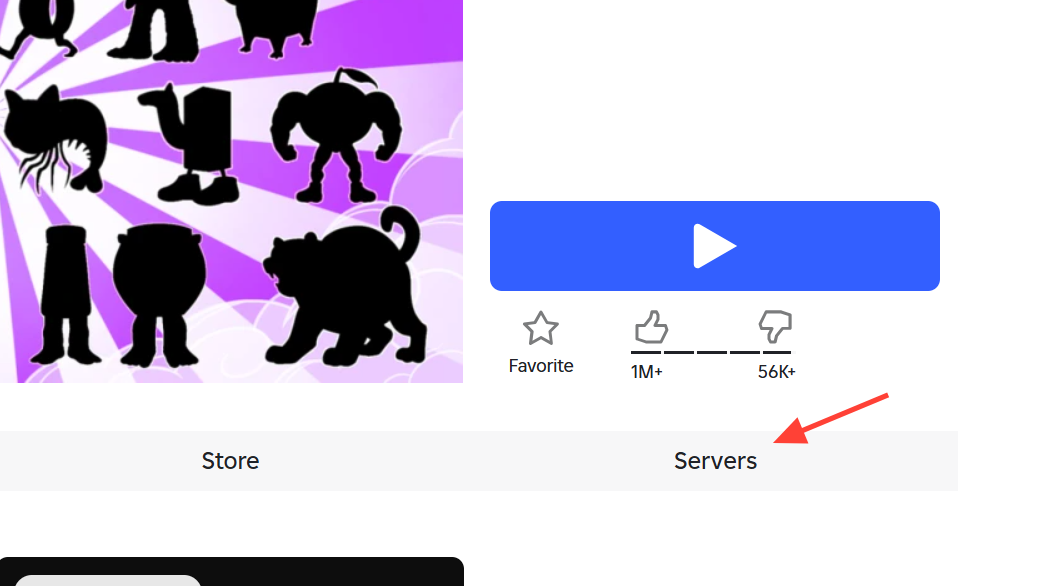
To find your private servers on Roblox mobile, open the Roblox app and navigate to the specific game where you own the private server. Scroll down past the game details to the 'Servers' section. Here, you'll find a 'Private Servers' tab where your owned servers or those you have access to will be listed. Tap on your server to join.
Where is the private server option located in the Roblox app?
The private server option isn't in a single global menu. Instead, you'll find it within the individual game pages. After selecting a game, scroll down the game's details page. Below the game description and 'About' sections, there's typically a 'Servers' tab. Tap this, then look for 'Private Servers' or 'VIP Servers' to manage or join.
Can I join a friend's private server on Roblox mobile?
Yes, you can absolutely join a friend's private server on Roblox mobile. The easiest way is for your friend to send you an invite link. Tapping this link on your phone will usually launch the Roblox app directly into their private server. Alternatively, if your friend is online and their privacy settings allow, you might see a 'Join' button on their profile.
What are Roblox VIP servers, and how do they work on mobile?
Roblox VIP servers are exclusive, private instances of a game that can be purchased with Robux. They allow you to play with only invited friends, providing a controlled environment free from public players. On mobile, they function identically: you access them through the specific game's server list, manage settings, and invite friends to join your custom game session.
Why can't I see my private server in a specific game on my mobile device?
If you can't see your private server, first ensure you're on the correct game's page. Check if its Robux subscription has expired. Try closing and reopening the Roblox app, or clear its cache on Android. A poor internet connection can also prevent server lists from loading correctly. Make sure your Roblox app is updated to the latest version.
How do I invite more friends to my Roblox private server using my phone?
To invite more friends from your mobile, navigate to your owned private server's configuration page within the specific game. Look for the 'Generate Link' or 'Copy Link' option. Once copied, you can share this unique URL through any messaging app or Roblox's in-app chat. Friends just tap the link to join directly.
Are there any performance benefits to playing on a private server on Roblox mobile?
Yes, private servers can offer performance benefits on Roblox mobile. With fewer players in the server compared to public instances, there's less strain on your device and a potentially more stable internet connection required for gameplay. This can lead to reduced lag, smoother frame rates, and an overall more optimized and enjoyable gaming experience.
Hey there, fellow gamers! Ever find yourself grabbing your phone for a quick Roblox session, only to realize you can't quite remember how to dive into your exclusive private server? You are definitely not alone. For many of us who are balancing jobs, families, and everyday life, gaming on the go has become a cherished way to unwind, connect with friends, and build some cool stuff. In fact, recent data shows that a significant portion of the 87% of US gamers who play regularly are doing so on mobile devices, often fitting in those precious gaming moments during a lunch break or while relaxing on the couch after a long day. It’s all about maximizing fun in limited time, right?
The pain point is real: you've invested Robux into creating or joining a private server for a specific game, perhaps to practice builds with your squad in Bloxburg, or to dominate a custom track in Adopt Me without interruptions. Now, you’re on your Roblox mobile app and you need to find that sanctuary fast. We understand that you don't want to spend precious gaming minutes navigating complex menus or searching outdated forums. You want clear, concise instructions that get you into your private world without hassle, allowing you to optimize your social play and skill-building efforts.
This comprehensive guide is your go-to resource for exactly that. We’re going to walk you through how to see all your private servers on Roblox mobile, step-by-step, ensuring you can quickly locate, manage, and even invite friends to your exclusive game worlds. Whether you're a seasoned Roblox player or just diving into the world of private servers, we've got the practical solutions to make your mobile gaming experience smoother, more enjoyable, and truly optimized for your busy lifestyle. Let's get you back to the fun!
How Do Private Servers Work on Roblox Mobile?
Private servers, often called VIP servers, offer an exclusive space within a Roblox game just for you and your chosen friends. They are a fantastic way to enjoy games without public distractions, providing a more controlled environment for social play, skill practice, or simply unwinding with your closest gaming buddies. On mobile, the functionality is largely the same as on PC, focusing on accessibility and ease of use. You typically purchase access to these servers with Robux, and they remain active as long as your subscription or ownership is maintained. This allows for dedicated sessions with a consistent group, fostering stronger connections and a more personalized gaming experience. For many adult gamers who prioritize relaxation and focused social interaction, private servers are an invaluable feature on the Roblox platform.
What's the Quickest Way to Find My Owned Private Servers?
Finding the private servers you personally own on Roblox mobile is straightforward once you know where to look. Instead of a single 'My Servers' tab, you navigate to the specific game where you created the private server. Here's the direct path:
Open the Roblox App on your mobile device and log in.
Navigate to the game for which you own a private server. You can find this game by searching or browsing your recently played list.
On the game's main page, scroll down until you see a section titled Servers. This section often appears below other details like Description, About, and Experiences.
Within the Servers section, look for a tab or filter option labeled Private Servers or VIP Servers. Tap this option.
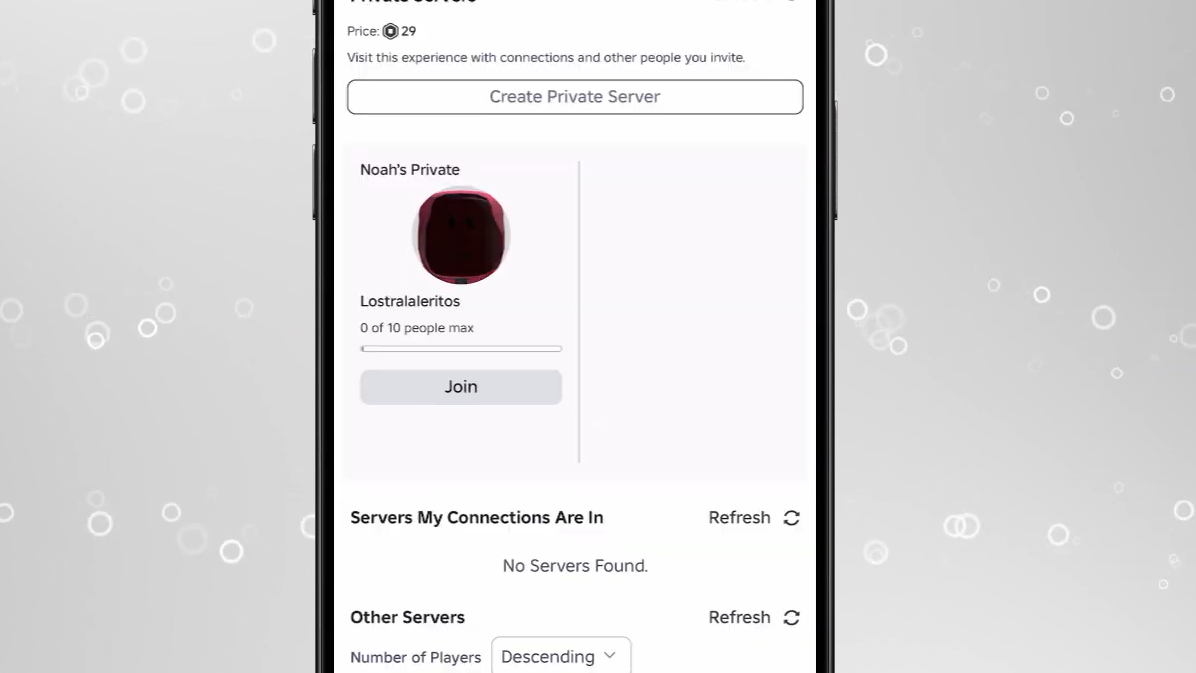
Here, you should see any private servers associated with that particular game that you either own or have previously joined. Your owned server will usually be clearly marked as 'Owned by You' or similar. Tap on your server to join it.
This method ensures you’re always heading directly to the game experience your private server is tied to, which is key for efficient navigation on mobile, especially when you have limited time to play.
How Can I Access Private Servers My Friends Invited Me To?
Joining a friend's private server on Roblox mobile is just as easy as finding your own, provided you've received an invitation. Roblox is all about social play, and accessing shared spaces is a big part of that. There are two primary ways to join a friend's private server:
Through an Invitation Link: Your friend can share a direct link to the private server via chat, Discord, or any messaging app. Tapping this link on your mobile device will typically open the Roblox app directly to the server's page, allowing you to join instantly. This is the most common and convenient method for quick access.
Through Your Friend's Profile: If the server owner is currently in their private server and their privacy settings allow, you might be able to join them directly. Go to your Friends list, find your friend's profile, and look for a 'Join' button next to their current game status. If they are in a private server you have access to, this button should lead you right in.
Remember, access is granted by the server owner. If you don't see an option to join, ensure your friend has sent you an invite or adjusted their server's access settings to allow you in. This streamlined process lets you jump into cooperative gameplay or social hangouts quickly, fitting perfectly into those short gaming windows throughout your day.
Are There Any Specific Settings I Need to Adjust on Mobile?
For the most part, accessing and managing private servers on Roblox mobile doesn't require extensive adjustments to your device settings. The Roblox app is designed to handle server connections seamlessly. However, a few general tips can optimize your experience:
App Permissions: Ensure the Roblox app has necessary permissions, such as network access, on your phone. Most devices grant these by default during installation, but it's worth checking if you encounter persistent connection issues.
Internet Connection: A stable Wi-Fi or strong mobile data connection is paramount. Lag or disconnections can severely impact your private server experience, especially in fast-paced games. With mobile gaming being so prevalent this month, a reliable connection is more important than ever.
Device Performance: While Roblox is optimized for many mobile devices, older phones or tablets might struggle with more graphically intense games or crowded servers. Closing background apps can free up RAM and CPU, improving performance.
Roblox itself manages most server-side settings, allowing you to focus on the game. Keeping your app updated through your device's app store also ensures you have the latest features and bug fixes, enhancing overall stability and access to private servers.
What If I Can't See My Private Server on the Mobile App?
It can be frustrating when your private server seems to vanish. If you're struggling to see your private server on the Roblox mobile app, here are several troubleshooting steps to help you pinpoint the issue and get back into your exclusive world:
Double-Check the Game: Make absolutely sure you are looking under the correct game. Each private server is tied to a specific experience. If you own private servers for multiple games, you'll need to visit each game's page individually to find its server list.
Verify Ownership: Has your private server subscription expired? Private servers typically require a monthly Robux payment. If the payment lapses, the server may become inactive. Check your Robux transactions or server management page on the Roblox website (which might be easier on PC if the mobile interface is unclear for this particular check).
Refresh the App: Sometimes, a simple refresh can resolve display glitches. Close the Roblox app completely (swipe it away from your recent apps) and then reopen it.
Check Your Internet Connection: A spotty connection might prevent the app from fully loading server information. Try connecting to a different Wi-Fi network or switching to mobile data to see if that resolves the issue.
Clear Cache (Android): For Android users, clearing the app's cache can sometimes help. Go to your phone's Settings > Apps > Roblox > Storage > Clear Cache. (iOS handles cache differently, often by offloading unused apps automatically).
Update the App: Ensure your Roblox app is updated to the latest version. Outdated apps can sometimes have bugs that prevent proper display of content. Visit your device's app store (Google Play Store or Apple App Store) to check for updates.
If none of these steps work, it might be worth contacting Roblox Support. Provide them with details of the game and your server ID if you have it, as they can check server status from their end. Remember, staying calm and methodical in your troubleshooting saves you time and gets you back to gaming faster.
How Do I Manage My Private Server Settings from Mobile?
Managing your private server settings on Roblox mobile allows you to control who can join and how your server functions. While some advanced features might be more accessible on the desktop site, core management can certainly be done on your phone:
Access the Game Page: Go to the specific game experience where you own the private server, as you would to join it.
Navigate to Servers: Scroll down to the Servers section and tap on the Private Servers tab.
Select Your Server: Locate your owned private server and look for a Configure or Manage gear icon, typically next to its name.
Adjust Settings: From this management panel, you can usually:
Change Server Name: Give your server a unique name.
Toggle Join Settings: Decide if it’s for 'Friends Only' or 'Friends of Friends' or a select list of users. This is crucial for maintaining a private, secure space for your group.
Generate Invite Link: Create a shareable link for your friends to join.
Remove Players: Kick unwanted players from your server if necessary.
These mobile-friendly controls empower you to maintain your exclusive gaming environment efficiently, even when you're on the go. This level of control is highly valued by adult gamers who want to ensure their relaxation time is spent with desired company and in a preferred setting, reflecting the social and community-building aspects popular in current gaming trends.
Can I Invite Friends to My Private Server Directly from Mobile?
Absolutely! Inviting friends to your private server directly from the Roblox mobile app is a core feature that enhances social play and makes spontaneous meetups easy. Here’s how you can do it:
Generate an Invite Link: As mentioned in the server management section, navigate to your owned private server's configuration page. Look for an option to Generate Link or Copy Link. This creates a unique URL for your server.
Share the Link: Once you've copied the link, you can paste it into any messaging app you use with your friends – WhatsApp, Discord, iMessage, or even Roblox's built-in chat. Your friends simply tap the link, and it will direct them to join your server within the Roblox app.
Invite via Friend's Profile (If in Game): If you are already in your private server and a friend is online, you might be able to invite them directly through the in-game menu (often accessed via the Roblox icon in the top-left corner) by finding their name on your friends list and selecting 'Invite to Game'. However, the link method is usually more reliable for ensuring they land in your specific private instance.
Focused Relaxation: Escape the chaos of public servers. Private worlds offer a serene environment where you can truly unwind and relax without trolls or unexpected interruptions, crucial for stress relief after a long day.
Enhanced Social Play: Connect deeply with your chosen friends and family. Private servers foster stronger bonds and allow for more intimate, cooperative gameplay, reflecting the strong social trends in mobile gaming this month.
Skill Building and Practice: Whether it's mastering parkour in a custom obby or perfecting a build in a simulation game, private servers provide a pressure-free space for deliberate practice and skill development without competition from strangers.
Performance Optimization: With fewer players, private servers often run smoother, reducing lag and improving your overall gameplay experience. This is a huge plus for those playing on mobile devices, where performance can sometimes be a concern.
Value for Money: While private servers cost Robux, the enhanced experience, control, and dedicated space often provide significant value, ensuring your gaming investment pays off in terms of enjoyment and peace of mind.
Stable Connection is King: Always prioritize a strong Wi-Fi connection over mobile data if possible. If mobile data is your only option, ensure you have good signal strength. A consistent connection prevents frustrating disconnections and lag spikes.
Close Background Apps: Your phone has limited resources. Before launching Roblox, close any unnecessary apps running in the background. This frees up RAM and processing power, leading to better game performance and responsiveness in your private server.
Keep Roblox Updated: Regularly check for Roblox app updates in your device's app store. Updates often bring performance improvements, bug fixes, and new features that can directly impact your private server experience.
Manage Device Storage: A full phone can slow everything down. Periodically clear old photos, videos, or unused apps to ensure your device has enough free storage for optimal performance. This is a general mobile gaming tip that applies to all titles, including popular free-to-play Roblox experiences.
Consider a Gaming Phone Cooler: If you game for extended periods and notice your phone getting hot, a clip-on phone cooler can help maintain performance by preventing thermal throttling. This is a budget-friendly hardware upgrade that can make a difference.
Set Realistic Expectations: While mobile Roblox is impressive, it might not always match the raw performance of a high-end PC. Appreciate the convenience and social aspects, and don't expect console-level graphics on every device. Balancing gaming with life sometimes means appreciating what you have.
Issue: Cannot Join a Friend's Private Server.
Solution: Ask your friend to re-send the invite link. Verify they haven't set their server to 'Friends Only' and that you are indeed on their friends list. Also, check if the server is full, though private servers typically have higher caps for invited players. Ensure your Roblox app is updated.
Issue: Server Appears Offline or Non-Existent.
Solution: Double-check if the server subscription is active (for owned servers). Re-launch the Roblox app. Clear the app's cache (Android) or reinstall the app (iOS/Android - a last resort as it might clear local data). Confirm you are looking at the correct game's server list.
Issue: Frequent Disconnections or Lag.
Solution: This is almost always network related. Move closer to your Wi-Fi router, switch to a stronger Wi-Fi network, or use mobile data if it's more stable in your area. Close all other background apps. Lowering in-game graphics settings can also help reduce strain on your device and network bandwidth.
Issue: Server Settings Not Saving.
Solution: Ensure you have a stable internet connection when making changes. After adjusting settings, make sure to look for and tap a 'Save' or 'Apply' button if one is present. If issues persist, try making the changes from a different device or the Roblox website if available, then check if they reflect on mobile.
This seamless invitation process underscores Roblox's commitment to social gaming, which is a major draw for Gen Z and Millennials who often seek to connect and relax with their online communities. Being able to quickly invite friends means less setup hassle and more actual playtime, which is perfect for balancing gaming with life's other responsibilities.
What Are the Benefits of Using Private Servers for Busy Gamers?
For the average gamer, balancing a career, family, and personal life, private servers on Roblox offer a unique set of advantages that cater to their specific needs and desires. It’s not just about exclusivity; it's about optimizing their precious gaming time:
Ultimately, private servers align perfectly with the desire of mature gamers to find quality, controlled, and meaningful gaming experiences that fit seamlessly into their busy schedules.
Tips for Optimizing Your Mobile Roblox Private Server Experience
Getting into your private server is one thing, but making sure it runs smoothly and enhances your enjoyment on mobile is another. Here are some pro tips for optimizing your experience:
By implementing these tips, you'll ensure your time spent in private Roblox servers on mobile is as enjoyable and frustration-free as possible, truly getting the most out of your relaxation and social gaming sessions.
Troubleshooting Common Issues with Private Servers on Mobile
Even with the best preparation, you might occasionally run into a snag when trying to access or manage your private Roblox servers on mobile. Here's a quick guide to troubleshooting common issues:
Remember, patience is key. Most issues are temporary and resolvable with these basic troubleshooting steps. Roblox is constantly improving its mobile platform, but understanding these common fixes empowers you to quickly overcome challenges and get back to enjoying your private gaming experience.
Frequently Asked Questions About Roblox Mobile Private Servers
What is a Roblox VIP server?
A Roblox VIP server is essentially a private instance of a specific game that only you and players you invite can access. It offers an exclusive, controlled environment for focused gameplay, social interaction, and practice without public interference. This enhances your gaming experience by providing a dedicated space for your community.
Can I create a private server from the Roblox mobile app?
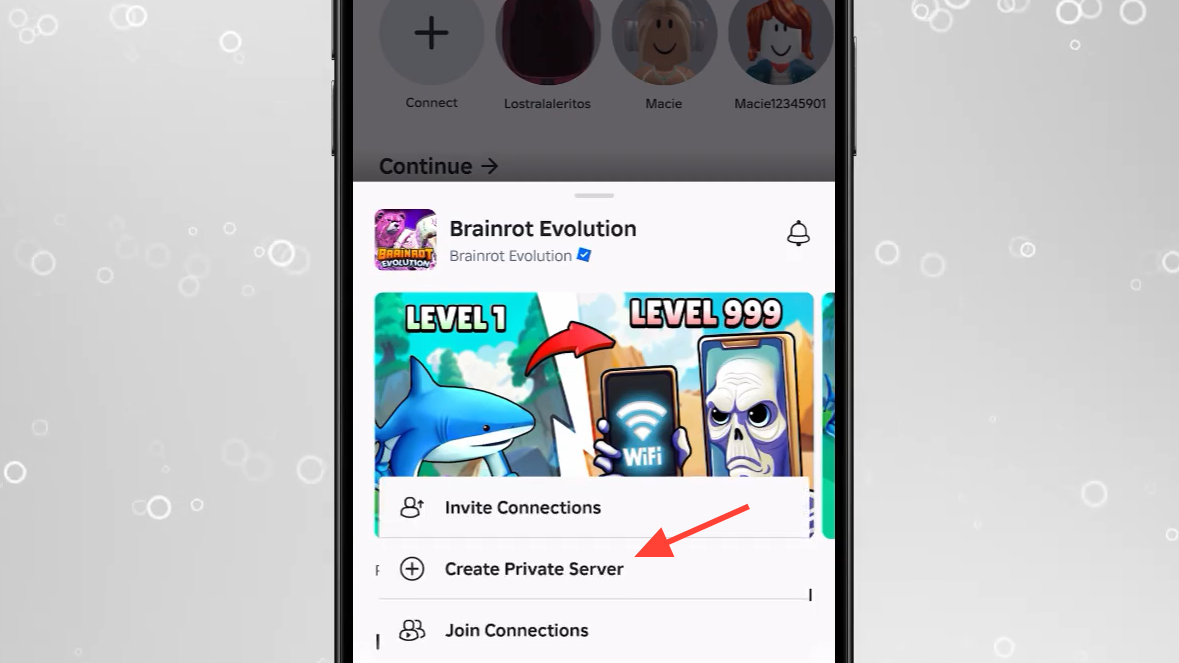
Yes, you can create a private server directly from the Roblox mobile app for games that support it. Navigate to the game's page, scroll to the Servers section, and look for the 'Create Private Server' option. This usually requires a one-time or monthly Robux payment, depending on the game.
Do private servers expire on Roblox?
Yes, private servers on Roblox typically expire. If you purchase a private server for a monthly Robux fee, it will expire if the subscription is not renewed. One-time purchase private servers (less common now) might have different expiration rules based on the specific game's developer.
How do I make my Roblox private server free?
Currently, Roblox private servers generally require Robux to purchase and maintain. There isn't an official way to make a private server free, as they are a premium feature. Some game developers might occasionally offer free private servers for a limited time or specific events, but this is rare and game-specific.
Is it possible to transfer ownership of a private server on mobile?
No, Roblox does not officially support transferring ownership of a private server to another player, neither on mobile nor PC. The server remains tied to the account that initially purchased it. If you wish for someone else to own a private server, they would need to purchase their own.
Can I use my private server on both mobile and PC?
Yes, absolutely! Private servers on Roblox are account-bound, not device-bound. Once you own or have access to a private server, you can join it from any platform where Roblox is available, including your mobile device, PC, or console, using the same Roblox account.
What is the maximum player limit for a private server?
The maximum player limit for a Roblox private server varies depending on the specific game developer's configuration. While public servers might host hundreds, private servers typically have smaller, more intimate capacities, often ranging from 10 to 50 players, designed for focused group play.
Conclusion
Navigating your Roblox private servers on mobile doesn't have to be a chore that eats into your valuable gaming time. By following these straightforward steps and understanding the nuances of the mobile interface, you can effortlessly locate, manage, and share your exclusive game worlds. We've covered everything from finding your owned servers and joining friends' spaces to troubleshooting common issues and optimizing your mobile experience. This month, with mobile gaming continuing its reign, efficient management of your social gaming experiences is more important than ever for the busy gamer.
Remember, private servers are your sanctuary for relaxation, skill-building, and connecting with your closest friends without interruption. They represent a smart investment in your gaming enjoyment, providing value that extends beyond simple gameplay. Embrace the convenience and control they offer, ensuring your Roblox adventures fit perfectly into your demanding lifestyle.
What's your biggest gaming challenge when balancing it with life? Comment below and share your strategies!
Easily locate all private servers on Roblox mobile app. Understand server ownership and access management. Learn step by step navigation through the Roblox mobile interface. Discover quick tips for inviting friends to your private server. Optimize your mobile gaming experience for private play. Get solutions for common access issues on Roblox mobile. Maintain social connections through exclusive game worlds. Balance gaming with daily life efficiently.
35


How To See All Your Private Servers On Roblox 2025 YouTube . WORKING 2026 HOW TO SEE AND CANCEL ALL YOUR PRIVATE SERVERS IN ROBLOX . Find Voice Chat VC Servers On Roblox . Easy Guide View All Your Roblox Private Servers YouTube . How To Check Private Servers In Roblox YouTube

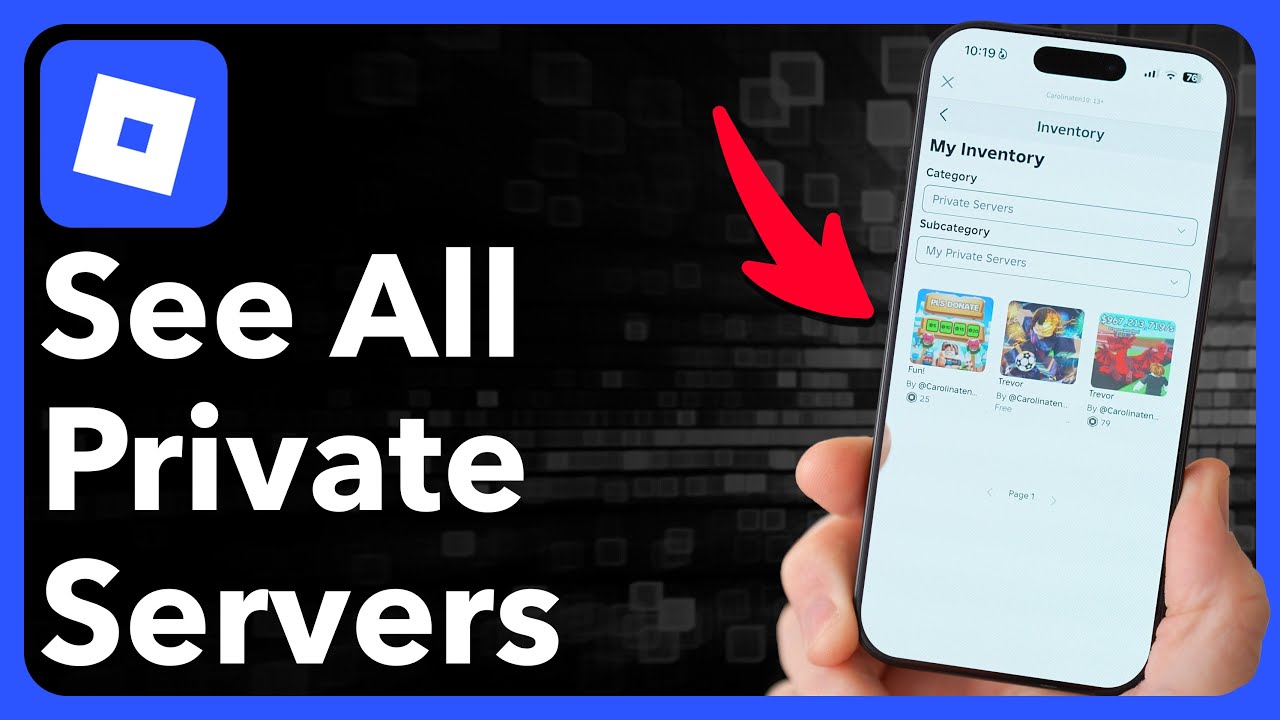


How To See All Your Private Servers On Roblox 2024 YouTube . How To See All Your Private Servers On Roblox YouTube . How To Join Roblox Private Server Links On Mobile Step By Step YouTube . How To Enable Private Servers On Your Own Roblox Game Full Guide . How To Enable Private Servers On Your Own Roblox Game Full Guide




How To Join Private Servers On Roblox Mobile In 2026 . How To Join Private Servers And Use VIP Links On Roblox Mobile How To Join Vip Links And Private Servers On Roblox Mobile . How To Make Private Server In Roblox Full Guide YouTube . Can Roblox Private Server Links Log You On Your Safety Guide Roblox Private Server 1024x573 . Roblox Steal A Brainrot Private Servers Full List Of Working Links
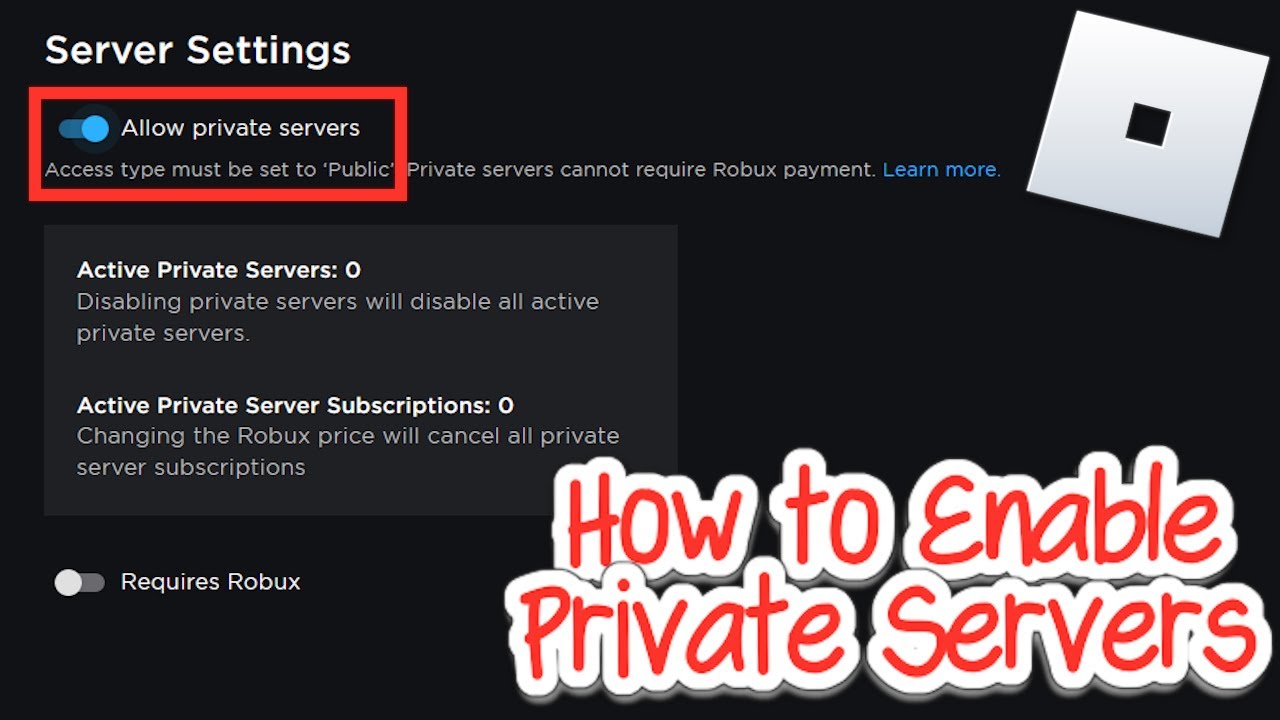

How To Make Private Servers For Your Roblox Games 2025 YouTube . How To Join Private Servers On Roblox Mobile In 2026 . How To Join A Private Server In Roblox Mobile YouTube . How To Use Private Servers In Brainrot Evolution On Roblox 2026 Image 364 1 . How To Fix Roblox Private Servers Not Working 2026 Fix Roblox Private Servers Not


How To See My Private Servers On Roblox 2024 Guide YouTube . Roblox PS4 Private Servers Your Easy Guide . How To Join A Private Server In Roblox PC Mobile YouTube . How To Delete Roblox Private Server Permanently 2026 How To Cancel . How To Use Private Servers In Brainrot Evolution On Roblox 2026 Image 365 1


How To Join Private Servers On Roblox Mobile In 2026 How To Join Private Servers On Roblox PS5. How To Delete A Private Server In Roblox A 2026 Guide . How To Add Friends To Your Private Server In Roblox Mobile YouTube . How To Use Private Servers In Brainrot Evolution On Roblox 2026 Image 363 1 . How To Use Private Servers In Brainrot Evolution On Roblox 2026 Image 362 1




How To Join Private Server Links On Roblox Mobile Quick Guide YouTube . HOW TO MAKE YOUR PRIVATE SERVER PUBLIC IN ROBLOX 2026 FULL GUIDE . How To Join Private Servers In Roblox Mobile 2022 YouTube . Roblox PS4 Private Servers Your Easy Guide . How To See Your Private Servers In Roblox A Quick And Easy Guide