Struggling with precise movement in your favorite Roblox games on PC? This comprehensive guide reveals exactly how to enable and effectively use Shift Lock on Roblox computer. Shift Lock is a game-changing feature that locks your camera behind your character, offering unparalleled control and a more immersive experience, especially crucial for obstacle courses (obys), combat, and intricate building games. We dive into the simple steps to activate it within Roblox settings, explore its benefits for competitive and casual players alike, and troubleshoot common issues you might encounter. Whether you're a seasoned gamer looking to refine your skills or a parent helping a child optimize their gameplay, understanding Shift Lock will elevate your Roblox experience, making movement smoother and more precise. Get ready to master your character's movements and conquer every challenge Roblox throws your way. This guide is designed for busy gamers seeking quick, effective solutions to enhance their playtime and maximize their fun without unnecessary friction.
How do you activate Shift Lock on Roblox PC?
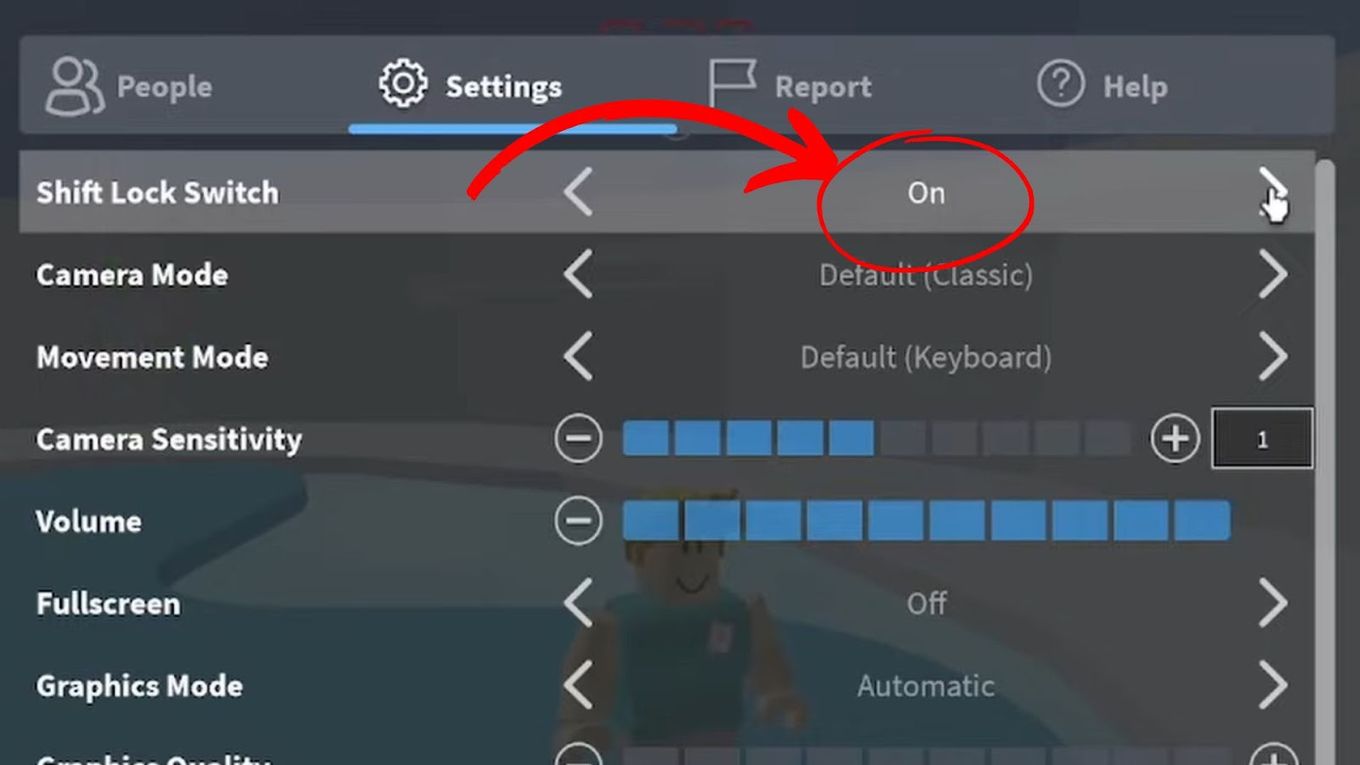
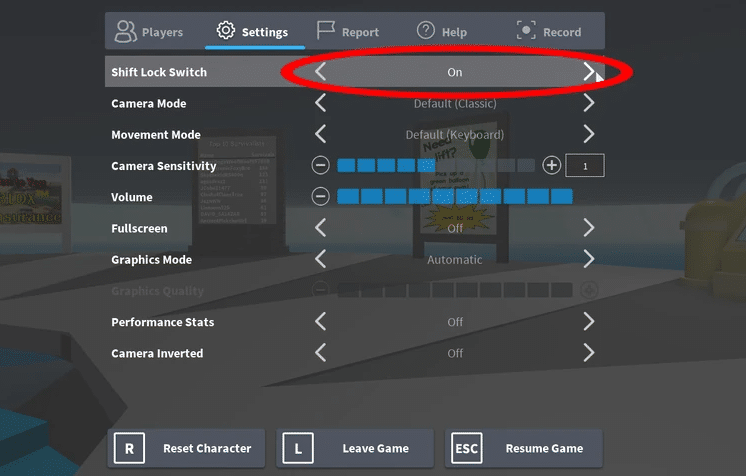
To activate Shift Lock on Roblox PC, first launch any Roblox game. Press the 'Esc' key to open the in-game menu, then navigate to 'Settings'. In the 'Camera' section, toggle the 'Shift Lock Switch' option to 'On'. Once enabled, you can press the 'Shift' key on your keyboard in-game to instantly toggle Shift Lock mode on or off, allowing for precise camera-locked movement behind your character.
Why should I use Shift Lock in Roblox?
You should use Shift Lock in Roblox to gain significantly more precise and controlled character movement. It locks your camera directly behind your avatar, making actions like navigating obstacle courses, aiming accurately in combat games, and performing detailed building tasks much easier and more efficient. For busy gamers, it optimizes playtime by reducing frustration from imprecise controls and enhancing skill-building.
Is Shift Lock available in all Roblox games?
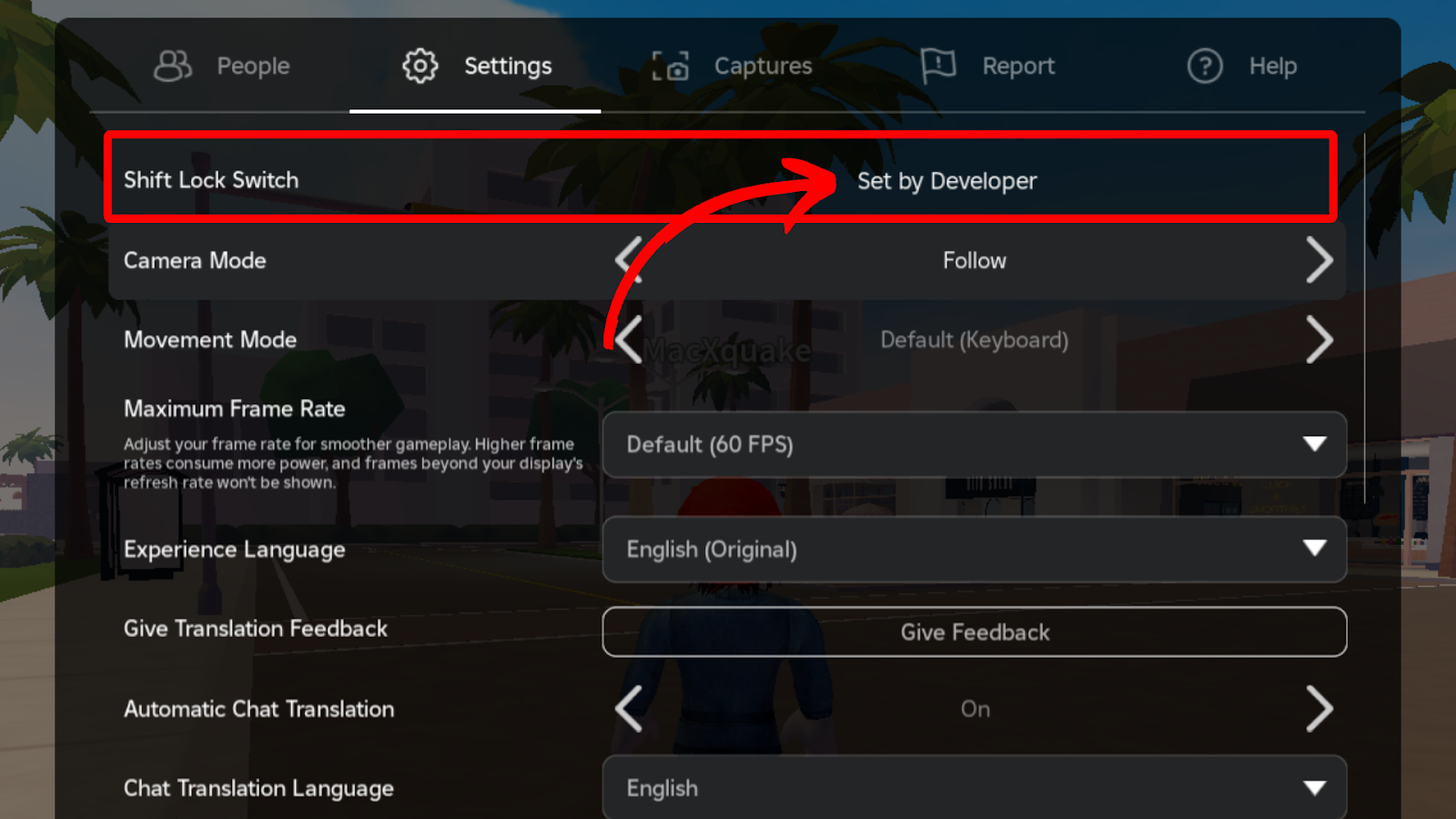
While the Shift Lock feature can be globally enabled in your Roblox settings, its actual functionality depends on the specific game's scripting. Most standard Roblox experiences fully support Shift Lock, especially popular ones that involve player movement. However, some games with highly custom camera systems or unique mechanics might disable or override it. It's best to test it in a new game to confirm.
What games benefit most from Shift Lock on Roblox?
Shift Lock is most beneficial in Roblox games requiring high precision and control. This includes obstacle courses (obbys) like Tower of Hell, fast-paced combat games such as Phantom Forces or Arsenal, and detailed building or social role-playing games like Bloxburg or Adopt Me when performing intricate actions. It significantly improves gameplay in these genres, giving players a competitive or creative edge.
My Shift Lock isn't working, how do I fix it?
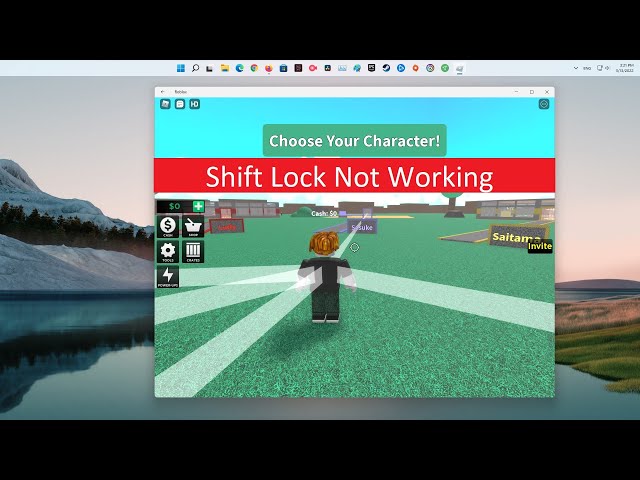
If Shift Lock isn't working, first ensure it's toggled 'On' in your Roblox settings (Esc > Settings > Camera). Check if your physical Shift key is functional. Try restarting the Roblox application, as this often resolves temporary glitches. Some games might also have custom scripts that disable Shift Lock, so test it in another game. Ensure your keyboard drivers are updated if issues persist.
Can Shift Lock improve my Roblox combat skills?
Yes, Shift Lock can significantly improve your Roblox combat skills. By locking your camera behind your character, it centers your view and aligns your movement with your aiming reticle. This allows for more precise target tracking, consistent shooting, and fluid strafing, giving you a distinct advantage in fast-paced combat scenarios. It helps maintain focus and reduce aiming frustration, boosting overall performance.
Are there alternatives to Shift Lock for better movement?
While Shift Lock is the primary built-in feature for camera-locked movement, holding down the right mouse button can achieve a similar temporary effect by manually rotating the camera behind your character. However, this is less convenient as it requires continuous holding. For permanent enhanced control, Shift Lock is the dedicated and most effective solution, making it superior to alternatives for consistent precision.
Ever find yourself in Roblox, trying to make a precise jump in an obby, navigate a tight space, or aim accurately in a fast-paced combat game, only to have your character's movement feel clunky and disconnected from your camera? It's a common frustration for many PC gamers, especially those of us balancing work, family, and a precious few hours for digital escape. We want our gaming time to be relaxing and rewarding, not spent wrestling with controls. You're not alone; a staggering 87 percent of US gamers play regularly, often for 10+ hours a week, and maximizing efficiency and fun is key, especially when balancing gaming with life's other demands.
The good news is there's a simple, yet incredibly powerful feature built right into Roblox that can dramatically enhance your precision and control on a computer: Shift Lock. This game-changer locks your camera directly behind your character, providing a fluid, third-person perspective that's invaluable for countless scenarios. Imagine effortlessly gliding through an obstacle course, making pinpoint shots, or building with greater accuracy. This isn't just a niche trick; it's a fundamental skill that many top players utilize, and it's surprisingly easy to enable, offering a significant performance optimization for your gameplay.
In this comprehensive guide, we'll walk you through everything you need to know about how to shift lock on Roblox computer. From the initial setup in your settings to understanding its strategic advantages in different game types, and even troubleshooting common issues, we've got you covered. We'll explore why this seemingly small adjustment can lead to a much more enjoyable and competitive Roblox experience, allowing you to get the most out of your valuable gaming moments. For gamers always looking to stay current and optimize their experience without falling for hype, mastering Shift Lock is a practical step towards better control and more satisfying gameplay. Let's dive in and unlock smoother movement and better control today.
What is Shift Lock in Roblox and Why is it Essential for PC Gamers?
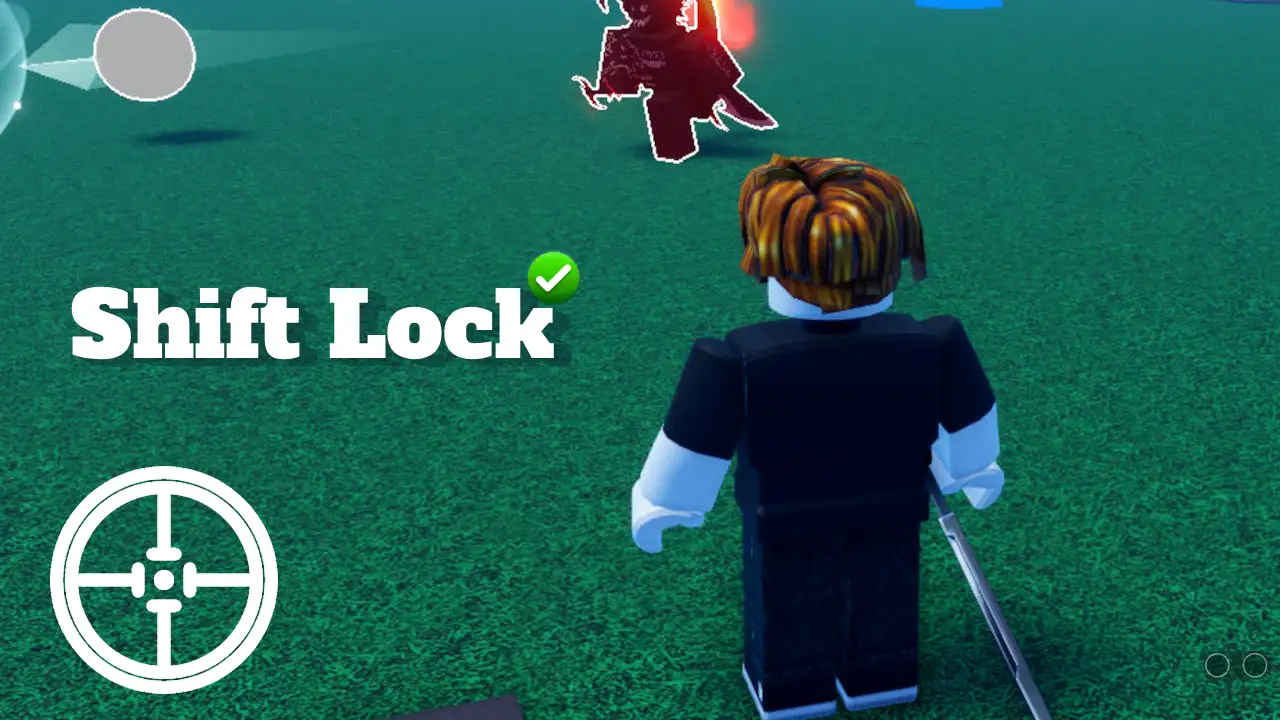
Shift Lock is a camera control feature in Roblox that, when activated, locks your camera's perspective directly behind your character. This means your character's movement is always relative to the camera's front, similar to many modern third-person action games you might play. Instead of your character's direction being independent of your camera's orientation, they move as one cohesive unit. For PC gamers, this translates into significantly improved precision and intuitive movement, which is critical in various game genres where split-second decisions and accurate positioning are vital. It provides a more streamlined, fluid experience, reducing the 'floaty' feeling sometimes associated with Roblox's default camera controls, and allows you to truly master your avatar's movements.
How Do I Enable Shift Lock in Roblox Settings on My Computer?
Enabling Shift Lock on your Roblox computer is a straightforward process that takes mere seconds. You don't need any special software or complex configurations; it's all handled within the Roblox client itself. For busy adults who want quick solutions, this setup is a breeze.
Here are the simple steps:
- Launch any Roblox experience on your computer.
- Once in the game, press the 'Esc' key on your keyboard to open the in-game menu.
- Look for the 'Settings' option within this menu and click on it.
- In the 'Settings' panel, navigate to the 'Camera' section.
- You'll see an option labeled 'Shift Lock Switch'. Toggle this option to 'On'.
- Close the settings menu, and you're all set! Now, whenever you're in a game, simply press the 'Shift' key on your keyboard (either left or right Shift) to activate and deactivate Shift Lock mode.
Remember, you only need to enable the 'Shift Lock Switch' once in your general Roblox settings. After that, you can use the Shift key to toggle it on and off in any game that supports the feature, saving you time and enhancing your focus on gameplay.
When Should I Use Shift Lock for Optimal Gameplay?
Shift Lock truly shines in scenarios demanding precise movement and focused attention. It's not a feature you'll want on 100% of the time, but knowing when to activate it can give you a significant advantage and elevate your skill. This is about working smarter, not harder, with your gaming time.
Consider using Shift Lock in these situations:
- Obstacle Courses (Obys): This is arguably where Shift Lock is most beneficial. The locked camera allows for incredibly accurate jumps, tightrope walking, and navigating tricky platforms with much less risk of falling. It's a game-changer for speed runs and difficult stages.
- Combat Games: In games requiring accurate aiming, such as first or third-person shooters within Roblox like Phantom Forces or Arsenal, Shift Lock helps maintain consistent target acquisition. Your crosshair stays central, making it easier to track enemies and land critical shots.
- Building or Detail Work: For those who enjoy creating in games like Adopt Me or Bloxburg, Shift Lock provides a steadier camera for placing objects precisely, designing intricate structures, or fine-tuning decor. It's invaluable for creative expression.
- Platforming Challenges: Any game that involves delicate platforming or traversing hazardous environments benefits from the enhanced control Shift Lock offers, helping you overcome seemingly impossible sections.
- Competitive Play: Many esports-style Roblox games, especially those focused on speed, precision, or parkour, see top players frequently utilizing Shift Lock for an undeniable edge over opponents.
Conversely, you might want to turn Shift Lock off for casual exploration, wide-area travel where you need to look around freely (like in a role-playing game where checking your surroundings is key), or in games where the camera is already fixed or controlled by the game's specific mechanics.
Are There Specific Roblox Games Where Shift Lock is Most Beneficial?
Absolutely! While Shift Lock can improve movement across many Roblox experiences, some games are practically designed to be played with it. For the average gamer who wants to jump into a title and have a great time, knowing which games truly leverage this feature can make a huge difference. Based on current trends and player preferences, here are a few genres and popular games where Shift Lock makes a substantial impact:
- Obby and Parkour Games: Titles like Tower of Hell, Obby King, or simple 'easy obby' maps become infinitely more manageable and enjoyable. The precision Shift Lock offers for small platforms and quick turns is unmatched.
- First and Third-Person Shooters: Games such as Phantom Forces, Arsenal, Bad Business, or Strucid see a massive boost in aiming accuracy and fluidity when using Shift Lock. It standardizes your aiming, making you a more consistent combatant.
- Role-Playing Games with Movement Challenges: Even in RP games like Adopt Me or Bloxburg, if you're navigating a pet through a course or meticulously placing furniture, Shift Lock can provide the granular control needed.
- Sword Fighting Games: In popular sword fighting arenas, precise movement to dodge attacks and land your own can be crucial. Shift Lock helps maintain that tight control.
Many of these games are popular among the Gen Z/Millennial audience, where skill-building and competitive advantage are highly valued. Using Shift Lock can give you that edge in these social and often competitive environments.
What if Shift Lock Isn't Working on My Roblox Computer? Troubleshooting Tips.
It can be frustrating when a feature like Shift Lock, which promises smoother gameplay, doesn't work as expected. Don't worry, most issues with how to shift lock on Roblox computer are easily fixable. Here's a quick troubleshooting guide:
- Check Roblox Settings: The most common oversight. Go to Esc > Settings > Camera and ensure 'Shift Lock Switch' is toggled 'On'. It must be enabled globally before you can use the Shift key in-game.
- Test Your Shift Key: Ensure your physical Shift key (left or right) is functioning correctly. Try typing a capital letter in a text editor. If it doesn't work, your keyboard might be the issue.
- Game-Specific Limitations: Some Roblox games have custom scripts or unique camera systems that might disable or override Shift Lock. This is rare but possible, especially in older or highly experimental games. Try Shift Lock in a different, well-known game (like an official Roblox experience or a popular obby) to see if it works there.
- Restart Roblox: A classic fix for many software glitches. Close the Roblox application completely and then relaunch it. This can clear any temporary bugs.
- Update Keyboard Drivers: While less common, outdated keyboard drivers could theoretically interfere. Check your operating system's device manager for driver updates, though Roblox typically handles inputs without needing very specific driver versions.
- Antivirus/Firewall Interference: Very occasionally, security software might interfere with game inputs. Temporarily disabling them (with caution) could help diagnose, but this is a last resort.
Remember, basic fixes like restarting your game or computer often resolve most performance problems and setup issues that gamers face, getting you back to the fun faster.
Can I Customize Shift Lock Controls or Camera Behavior?
Roblox provides a good degree of control over its camera and input, though direct customization of the Shift Lock key itself is limited. The 'Shift' key is hard-coded for its activation/deactivation. However, you can tweak other related camera settings to fine-tune your overall experience with Shift Lock on:
- Camera Mode: In the Roblox settings (Esc > Settings > Camera), you'll find 'Camera Mode'. Experiment with 'Follow' vs. 'Classic'. 'Follow' is generally recommended for Shift Lock as it tries to keep the camera behind your character more naturally.
- Camera Sensitivity: Adjusting your mouse sensitivity (either in-game or via your mouse's software) will affect how quickly your camera turns when Shift Lock is active. Finding the sweet spot can greatly improve your aiming and turning speed.
- Inverted Camera: If you prefer inverted Y-axis controls, you can enable 'Invert Y Axis' in the camera settings, which will apply to Shift Lock mode as well.
While you can't rebind the Shift Lock key to, say, 'Caps Lock' within Roblox, these other adjustments allow you to personalize the feel of your camera and movement. Many gamers, especially those who balance gaming with jobs and families, appreciate these built-in options for optimizing their experience without needing complex third-party tools.
How Does Shift Lock Impact Performance or Immersion on PC?
The impact of Shift Lock on your PC's performance is virtually negligible. It's a client-side camera adjustment, not a graphically intensive effect or a demanding processing task. You won't see a drop in frame rates or increased latency just by enabling it. In fact, by providing more precise control, Shift Lock can actually enhance the *feeling* of performance, making your movements feel smoother and more responsive, leading to less frustration.
In terms of immersion, Shift Lock is a double-edged sword, but largely positive. For competitive and action-oriented games, it significantly *boosts* immersion by removing the distraction of a free-floating camera and letting you focus entirely on your character's actions and the game world directly in front of you. This direct connection to your avatar helps you feel more 'in the game'. However, for casual exploration where you want to admire the scenery or look around freely without moving, it might temporarily break immersion until you toggle it off. Most gamers find its benefits for focused play far outweigh any minor limitations for general sightseeing.
Shift Lock vs. Traditional Movement: Which is Better for Different Playstyles?
The choice between Shift Lock and traditional movement ultimately depends on your playstyle and the specific game you're in. Neither is universally
Enabling Shift Lock via Roblox in-game settings.Understanding the benefits of locked camera movement.Troubleshooting common Shift Lock activation issues.Improving precision and control in Roblox gameplay.Optimizing movement for obys, combat, and building.Enhancing overall Roblox experience on PC.
35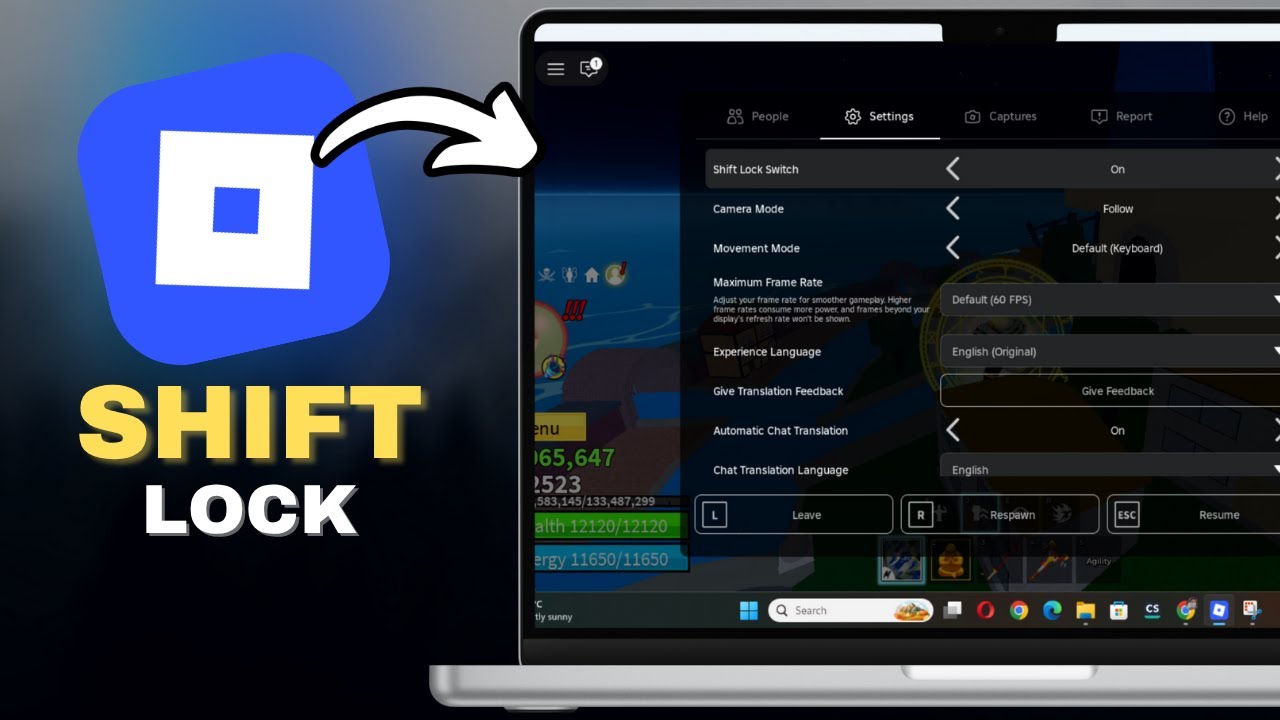


How To Shift Lock In Roblox PC In SECONDS YouTube . How To Shift Lock In Roblox PC YouTube . How To Enable Shift Lock In Roblox PC Quick Easy Method YouTube . How To Shift Lock In Roblox PC Full Guide YouTube . EASY How To FIX SHIFT LOCK Bug In Roblox Not Working PC 2026 YouTube



How To Enable Shift Lock On Roblox YouTube . How To Shift Lock In Roblox Laptop Step By Step YouTube . How To Enable Shift Lock In Roblox Steal A Brainrot Full Guide YouTube . Roblox SHIFT LOCK PC Tutorial Turn ON OFF And Tips YouTube Hqdefault . How To Use Shift Lock In Roblox Xbox 2026 UPDATED GUIDE YouTube


How To Shift Lock On Roblox How To Fix If Not Working Alvaro Unnamed File 138 . How To Enable Shift Lock In Roblox 2025 Easy PC Mobile Guide . How To Enable Shift Lock In Roblox Step By Step Guide 6dad346d B853 4217 A7ec. How To Enable Shift Lock On Roblox YouTube . How To Shift Lock On Roblox How To Fix If Not Working Alvaro Unnamed File 22


How To DO SHIFT LOCK On Roblox PC Set Up Roblox YouTube . How To Enable Shift Lock On Roblox Laptop Windows Mac . Shift Lock Stuck Get Moving Again 2 1024x473 . How To Use Shift Lock In PC Roblox YouTube . Roblox Mouse Shift Lock Roblox Shift Lock PING



How To Do Shift Lock On Roblox Windows Mac 2026 YouTube . How To Shift Lock On Roblox 2023 Guide Ricky Spears Switch From Off To On To Enable Shift Lock . Wie Macht Man In Roblox Shift Lock HCGP . How To Get Or Enable Shift Lock On Roblox Mobile And PC 2026 Techy Get Enable Shift Lock Roblox Mobile Pc.webp. How To Shift Lock On Roblox Fix If It S Not Working Makeshift Lock


How To DO SHIFT LOCK On Roblox PC Set Up Roblox YouTube Hqdefault . C Mo ACTIVAR El SHIFT LOCK En ROBLOX PC F Cil Y R Pido YouTube . How To Lock Screen In Roblox PC H Ng D N Chi Ti T V C C M O T I U V4 460px Shift Lock On Roblox Step 9 . How To TURN OFF SHIFT LOCK ROBLOX COMPUTER LAPTOP PC YouTube . How To Enable Shift Lock On Roblox Mobile March 2026 Guide How To Enable Shift Lock On Roblox Mobile



How To Fix Roblox Shift Lock Not Working Quick Easy YouTube . How To Fix Roblox Shift Lock Not Working 2026 PC Controls Fix YouTube . Wie Macht Man In Roblox Shift Lock HCGP Sddefault . Unlock Your Roblox Potential Shift Lock Guide Como Quitar El Shift Lock En Roblox Studio . How To Shift Lock In Roblox FAST And EASY YouTube