Unlock the power of multitasking in your gaming sessions with our comprehensive guide on how to run 2 Roblox games at once. For the busy US gamer, balancing work, family, and passion, efficiency is key. Discover legitimate, performance-optimized methods to enjoy multiple Roblox experiences simultaneously, whether you are farming in one game while chatting with friends in another, or managing different accounts. This article dives into practical solutions, from using virtual machines and sandboxing tools to leveraging multiple browser profiles, ensuring you maximize your precious gaming time without compromising system performance or account security. Learn how to optimize your setup for seamless dual-instance play, making the most of your hardware and internet connection. Stay ahead of the curve with insights into the latest software and techniques, ensuring your multi-Roblox experience is smooth and rewarding. Perfect for those seeking to enhance their social gaming, accelerate progress, or simply explore more of what Roblox has to offer in 2026.
Q: What are the primary methods for running two Roblox games at once?
A: The primary methods for running two Roblox games at once involve using separate computing environments. These include creating multiple user accounts on your Windows PC, utilizing sandboxing software like Sandboxie-Plus, or employing virtual machines (VMs) such as VirtualBox or VMware. Each method creates isolated instances of the Roblox client, allowing you to log in with different accounts and play simultaneously.
Q: Is it safe to run multiple Roblox accounts on the same PC?
A: Yes, it is generally safe to run multiple Roblox accounts on the same PC, provided you use legitimate methods that do not involve third-party exploits or cheats. Using separate Windows user profiles, sandboxing applications, or virtual machines are considered safe and compliant approaches. Roblox's terms typically focus on preventing unfair advantages, not merely running multiple instances for personal use or farming.
Q: What kind of PC hardware do I need for smooth dual Roblox gameplay?
A: For a smooth dual Roblox gameplay experience, you'll need a reasonably powerful PC. Key specifications include at least an Intel Core i5 (10th Gen or newer) or AMD Ryzen 5 (3000 series or newer) CPU, 16GB of RAM, and preferably a dedicated graphics card like an NVIDIA GTX 1050 Ti or AMD RX 560. An SSD is also highly recommended for faster loading times.
Q: How do I use Sandboxie-Plus to run two Roblox games?
A: To use Sandboxie-Plus, first download and install the software. Then, create a new sandbox environment within Sandboxie-Plus. Once your sandbox is ready, right-click your Roblox Player executable or shortcut, select 'Run Sandboxed', and choose the sandbox you created. This will launch a separate Roblox instance within the isolated environment, allowing you to run another normally.
Q: Can I run multiple Roblox games without extra software?
A: Yes, you can run multiple Roblox games without installing extra third-party software by using your operating system's built-in features. The most common and effective method is to create and switch between different user accounts on Windows. Each Windows user profile can launch its own instance of the Roblox client independently, allowing you to play two games simultaneously.
Q: Does running two Roblox games impact my internet speed?
A: Running two Roblox games simultaneously will consume more internet bandwidth compared to running just one. Each instance needs to communicate with Roblox servers, leading to increased data usage. While it won't drastically slow down a fast connection, users with slower or limited data plans might notice a greater impact on overall internet performance.
Q: Are there any performance optimization tips for running two Roblox games?
A: Absolutely. To optimize performance, close unnecessary background applications, update your graphics drivers, and lower the in-game graphics settings for both Roblox instances. You can also use Task Manager to set a lower process priority for the background Roblox instance. Monitoring your CPU and GPU temperatures is also crucial to prevent thermal throttling and maintain stable performance.
Are you a dedicated gamer navigating the demands of a busy adult life? If you're like the average US gamer, around 36 years old and balancing a job, family, and personal life, your gaming time is precious. You crave relaxation, fun, skill-building, and social connection, but finding enough hours in the day can feel like a boss battle in itself. What if we told you there's a way to double your Roblox fun, making your limited gaming sessions even more productive or enjoyable? We're talking about learning how to run 2 Roblox games at once.
This isn't about some niche trick for hardcore streamers; it's about practical solutions for everyday gamers who want to maximize their experience. Whether you're grinding for resources in one game while chilling with friends in another, or managing different accounts for various in-game goals, running multiple Roblox instances can be a game-changer. We've seen how mobile gaming's dominance and social play trends continue to grow, with 87% of US gamers regularly playing and averaging over 10 hours a week. Efficient multitasking in games like Roblox fits perfectly into this landscape, offering a way to engage more deeply without sacrificing crucial real-world commitments. This comprehensive guide will walk you through legitimate, performance-optimized methods to achieve dual Roblox mastery in 2026, addressing common pain points like setup issues and performance concerns head-on. Let's dive into how you can make your PC a Roblox powerhouse.
Why Would I Want to Run Two Roblox Games Simultaneously?
For many adult gamers, efficiency and multitasking are core to enjoying their hobbies amidst life's responsibilities. Running two Roblox games at once offers several compelling benefits. Firstly, it's fantastic for resource farming or AFK activities: you can set up one instance to auto-farm in a game like Adopt Me or Blox Fruits, while actively playing another, more engaging title. This maximizes progress without constant direct interaction. Secondly, it enhances social interaction: imagine chatting with friends in a lobby game on one screen while your main character is progressing through an adventure on another. Thirdly, it's useful for managing multiple accounts, whether for testing game features, playing with family members on the same PC, or simply having dedicated accounts for different play styles. Finally, for content creators or those testing games, running multiple instances can be invaluable for development and quality assurance, allowing simultaneous perspective checks.
Is Running Multiple Roblox Instances Against Roblox's Terms of Service?
This is a common and important concern for any gamer. Generally, running multiple instances of the Roblox client itself, without the use of third-party exploits or cheats that modify game files or client behavior, is not explicitly against Roblox's Terms of Service (ToS). The key distinction lies in how you achieve it and what you do within those instances. Using virtual machines, sandboxing, or multiple user accounts on your operating system are typically considered legitimate methods as they replicate separate computing environments. However, using programs that inject code, automate gameplay beyond simple macros (often against specific game rules, not just Roblox's), or create an unfair advantage can lead to account penalties. Always prioritize methods that don't interfere with Roblox's client integrity or give an unfair edge. Roblox aims for fair play, so avoid any tools promising 'hacks' or 'exploits'.
What Hardware Do I Need to Run Two Roblox Games Smoothly?
Running two instances of Roblox demands more from your system than running just one. While Roblox isn't the most graphically intensive game, two instances will consume double the CPU, RAM, and GPU resources. For a smooth experience, especially if you're multitasking, here's what to aim for:
- Processor (CPU): An Intel Core i5 (10th Gen or newer) or AMD Ryzen 5 (3000 series or newer) is a good starting point. Ideally, a Core i7/Ryzen 7 or better will provide ample threads for both game instances and background tasks.
- Memory (RAM): 16GB of RAM is highly recommended. Each Roblox instance can consume several gigabytes, plus your operating system and browser. 8GB might technically work but will likely lead to stuttering and slower performance.
- Graphics Card (GPU): While integrated graphics can handle one Roblox instance, a dedicated GPU like an NVIDIA GeForce GTX 1050 Ti or AMD Radeon RX 560 (or newer equivalents) will significantly improve performance and stability when running two. This frees up your CPU and ensures smoother frame rates.
- Storage: An SSD (Solid State Drive) is crucial for faster load times. While not directly affecting in-game frame rates, it makes launching games and loading assets much quicker.
- Internet Connection: A stable and reasonably fast internet connection (at least 50 Mbps download) is essential for online games. Two instances will slightly increase bandwidth usage, but latency (ping) is often more critical.
Remember, if you're on a budget, prioritize RAM and a decent CPU. Many integrated GPUs today (like those in newer Ryzen CPUs) are surprisingly capable for Roblox.
How Can I Use Multiple User Accounts on Windows to Run Two Roblox Games?
One of the safest and most straightforward methods for running two Roblox games is by utilizing separate user accounts on your Windows PC. This creates distinct environments for each instance, minimizing conflicts.
- Create a Second User Account: Go to Windows Settings > Accounts > Family & other users > Add someone else to this PC. Follow the prompts to create a new local account. You don't need to make it an administrator.
- Switch to the Second Account: Log out of your primary Windows account (or use 'Switch User') and log into the newly created account.
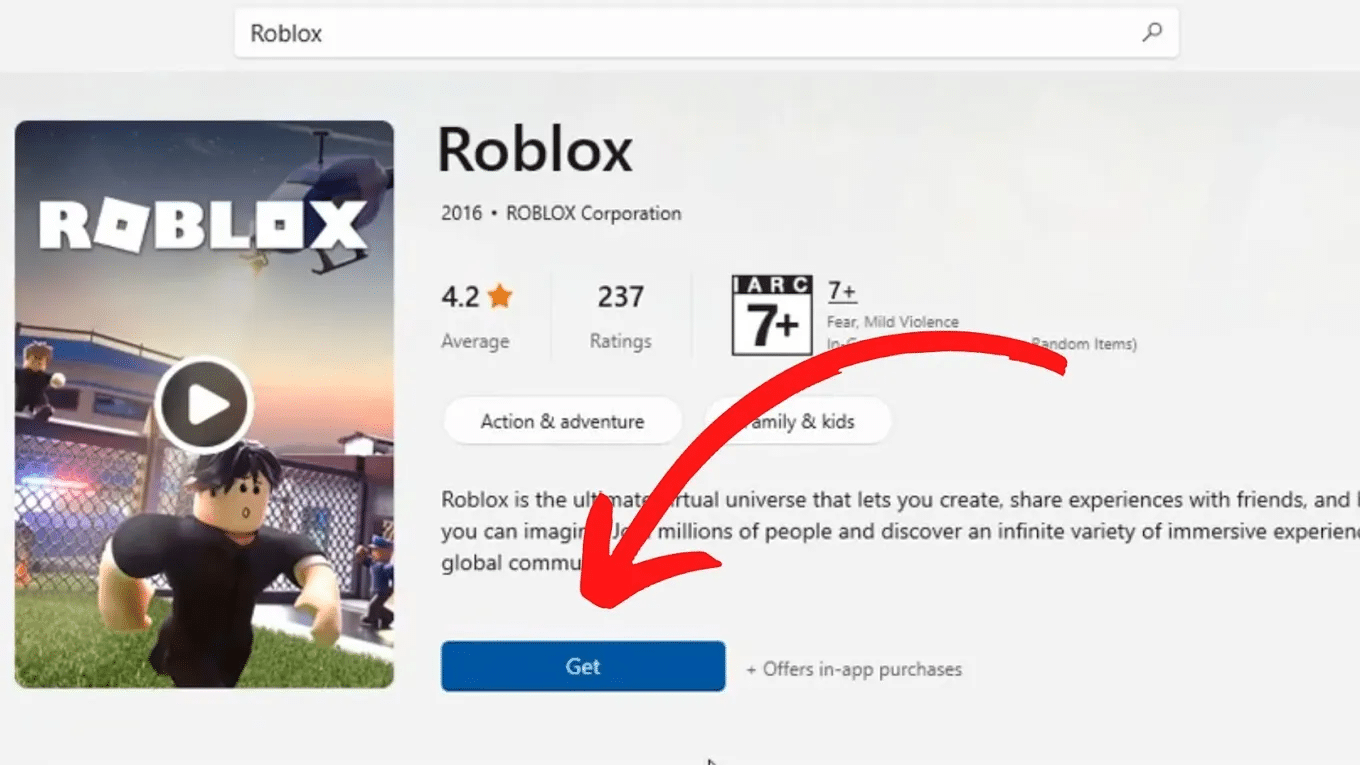
- Install Roblox (if necessary): On the second user account, download and install Roblox from the official website if it's not already installed. It often installs for all users, but ensure it's accessible.
- Launch Roblox on Both Accounts: Log into your desired Roblox account on the second Windows user profile and launch a game. Then, switch back to your primary Windows account (without logging out of the second one) and launch another Roblox game with your primary Roblox account.
- Switch Between Instances: You can switch between the two active Windows user sessions using the Start Menu (click your profile icon) or by pressing Ctrl+Alt+Del and selecting 'Switch User'. This method effectively runs two instances in parallel, each isolated.
This method offers excellent stability and security but requires more RAM and CPU overhead as it's essentially running two separate Windows environments.
What are Sandboxing Tools and How Do They Help Run Two Roblox Games?
Sandboxing tools create isolated environments for applications, allowing you to run multiple instances of the same program without them interfering with each other or your main system. Think of it as a virtual container for an application. The most popular and well-regarded tool for this is Sandboxie-Plus (an open-source successor to the original Sandboxie).
- Download and Install Sandboxie-Plus: Visit the official Sandboxie-Plus website and download the latest version. Install it on your system.
- Create a New Sandbox: Once installed, open Sandboxie-Plus. You'll typically see a 'DefaultBox'. You can create a new sandbox specifically for Roblox by right-clicking in the main window and choosing 'Create New Sandbox'. Give it a clear name like 'RobloxSecondary'.
- Run Roblox in the Sandbox: To run Roblox in the new sandbox, you have a few options:
- Right-click on your Roblox Player desktop shortcut or executable (.exe file).
- Select 'Run Sandboxed' and then choose the 'RobloxSecondary' sandbox you created.
- Alternatively, in Sandboxie-Plus, click the 'Run' menu and choose 'Run Program', then browse to your Roblox Player executable (usually located at
C:Program Files (x86)RobloxVersions[latest version]RobloxPlayerBeta.exe). Select your secondary sandbox.
- Launch a Second Game: With your primary Roblox game running normally (outside the sandbox), launch a second Roblox game using the sandboxed instance. You can log into a different Roblox account in each instance.
Sandboxie-Plus is excellent for its lightweight nature compared to full virtual machines, offering a good balance of isolation and performance. It's a favorite among US gamers for its simplicity and effectiveness in various multitasking scenarios.
Can I Use Virtual Machines (VMs) to Play Multiple Roblox Games?
Yes, Virtual Machines (VMs) are a highly effective, albeit resource-intensive, method for running multiple Roblox games simultaneously. A VM essentially simulates a complete computer system within your existing PC, allowing you to install a separate operating system (like another Windows instance) and run applications within it. This provides ultimate isolation.
- Choose a Virtualization Software: Popular options include VMware Workstation Player (free for personal use) or Oracle VirtualBox (completely free and open-source). Download and install your preferred software.
- Install a Guest OS: Create a new virtual machine within your chosen software and install a guest operating system, preferably Windows 10 or 11. This requires a legitimate Windows license for the VM.
- Install Roblox in the VM: Once your guest OS is set up, install Roblox just as you would on a regular PC.
- Launch Games: Run one Roblox game on your main PC and another inside the virtual machine. Each will act as if it's running on a completely separate computer.
Pros: Maximum isolation, excellent stability, ability to run different OS versions. Cons: Very resource-heavy (requires significant RAM, CPU, and storage), can be complex to set up, and may introduce input lag if not configured correctly. This method is best for users with high-end PCs or those needing strict separation.
Are There Any Browser-Based Methods or Roblox-Specific Tricks?
While Roblox primarily uses a desktop client, you can leverage browser-related tricks for managing multiple accounts, though not necessarily running two instances of the game client directly from the browser simultaneously without additional tools. The Roblox website allows you to be logged into only one account per browser profile.
- Multiple Browser Profiles: Most modern browsers (Chrome, Edge, Firefox) allow you to create multiple user profiles. Each profile acts like a separate browser installation, with its own cookies, history, and logins. You can log into a different Roblox account in each browser profile. While this doesn't directly launch two game clients, it's useful for managing accounts for games that do use browser instances, and allows you to easily switch between Roblox accounts to launch different games.
- Incognito/Private Browsing: Using an incognito or private window allows you to log into a second Roblox account without affecting your main browser's login. However, this is generally only good for one temporary secondary session.
- Different Browsers: Simply use different web browsers (e.g., Chrome for one account, Firefox for another) to log into separate Roblox accounts. This achieves the same effect as browser profiles but uses distinct applications.
Remember, these browser-based methods primarily facilitate logging into different Roblox accounts. To run two game clients at the same time, you'll still need one of the sandboxing, VM, or multi-user account methods discussed earlier.
How Can I Optimize My PC Performance When Running Dual Roblox Games?
Running two instances can strain your system. Here's how to keep things smooth:
- Close Background Programs: Shut down unnecessary applications, browser tabs, and widgets. Every bit of RAM and CPU usage counts.
- Update Drivers: Ensure your graphics drivers (NVIDIA, AMD, Intel) and Windows are up to date. Driver updates often include performance optimizations.
- Adjust In-Game Graphics: In both Roblox instances, lower the graphics quality settings. Reduce texture quality, shadow details, and view distance. This significantly lessens the load on your GPU.
- Set Process Priority: Open Task Manager (Ctrl+Shift+Esc), go to the 'Details' tab, find 'RobloxPlayerBeta.exe' for both instances. Right-click and set 'Set priority' to 'Normal' or 'Above normal' for the instance you're actively playing, and 'Below normal' for the one in the background (be cautious with 'High' or 'Realtime' as it can destabilize your system).
- Monitor Temperatures: Keep an eye on your CPU and GPU temperatures using monitoring software (e.g., HWMonitor, MSI Afterburner). Overheating can lead to throttling and performance drops. Ensure good airflow in your PC case.
- Consider a Hardware Upgrade: If consistent stuttering or low FPS persists, consider upgrading your RAM (to 16GB or 32GB) or getting a dedicated GPU. For gamers balancing budgets, a RAM upgrade often offers the most cost-effective performance boost for multitasking.
By implementing these optimizations, you can significantly improve your dual-Roblox experience, making it more stable and enjoyable.
Harnessing the ability to run 2 Roblox games at once is a fantastic way to level up your gaming efficiency and enjoyment, especially for busy adults juggling life's demands. From leveraging your operating system's features to employing specialized sandboxing tools, there are legitimate and effective methods to make multitasking in Roblox a reality. We've explored how different approaches like multiple Windows user accounts, Sandboxie-Plus, and even virtual machines can provide the isolation needed, alongside crucial tips for optimizing your PC's performance. Remember, the goal is always to enhance your experience responsibly and within Roblox's guidelines.
What's your biggest gaming challenge when balancing life and play? Comment below and let's discuss solutions!
FAQ Section
Can I run two Roblox games on a single monitor? Yes, you can. You'll need to manually resize and arrange the Roblox windows side-by-side or use a virtual desktop feature in Windows to switch between them quickly.
Does running two Roblox games use double the internet data? Roughly, yes. Each instance requires its own connection to Roblox servers. While it won't precisely double, expect a noticeable increase in data usage and a slightly higher demand on your bandwidth.
Is there an official Roblox feature to run multiple instances? No, currently, Roblox does not offer an official, built-in feature to launch multiple game clients from the same user session. All methods involve using OS features or third-party software.
Will my Roblox accounts be banned for running two games? As long as you use legitimate methods (like separate user accounts, sandboxing, or VMs) and do not employ any exploits, cheats, or automated bots that violate Roblox's Terms of Service within the games, your accounts should be safe. The issue is usually what you do in the instances, not merely running two.
What's the easiest method for beginners to run two Roblox games? For beginners, using separate user accounts in Windows is often the easiest and safest method, as it doesn't require installing complex third-party software. Sandboxie-Plus is also user-friendly once set up.
Can mobile devices run two Roblox games at once? Most mobile devices do not natively support running two instances of the same app simultaneously in a truly independent manner. Some Android phones offer 'dual apps' or 'app cloning' features, but their compatibility and performance with Roblox can vary and are not officially supported.
Run multiple Roblox instances; Optimize gaming for busy schedules; Virtual machine methods; Sandboxing applications; Multiple browser profiles for Roblox; Performance optimization tips; Account safety and best practices; Legitimate ways to multitask on Roblox; Hardware considerations for dual gaming; Enhance social and farming efficiency.
35
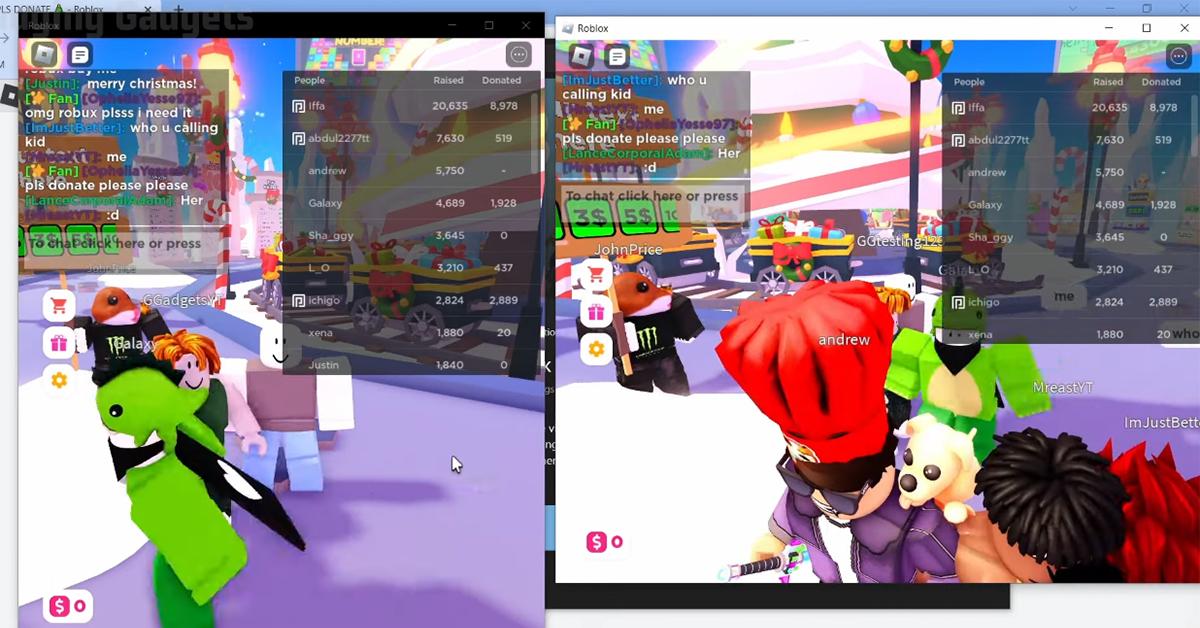


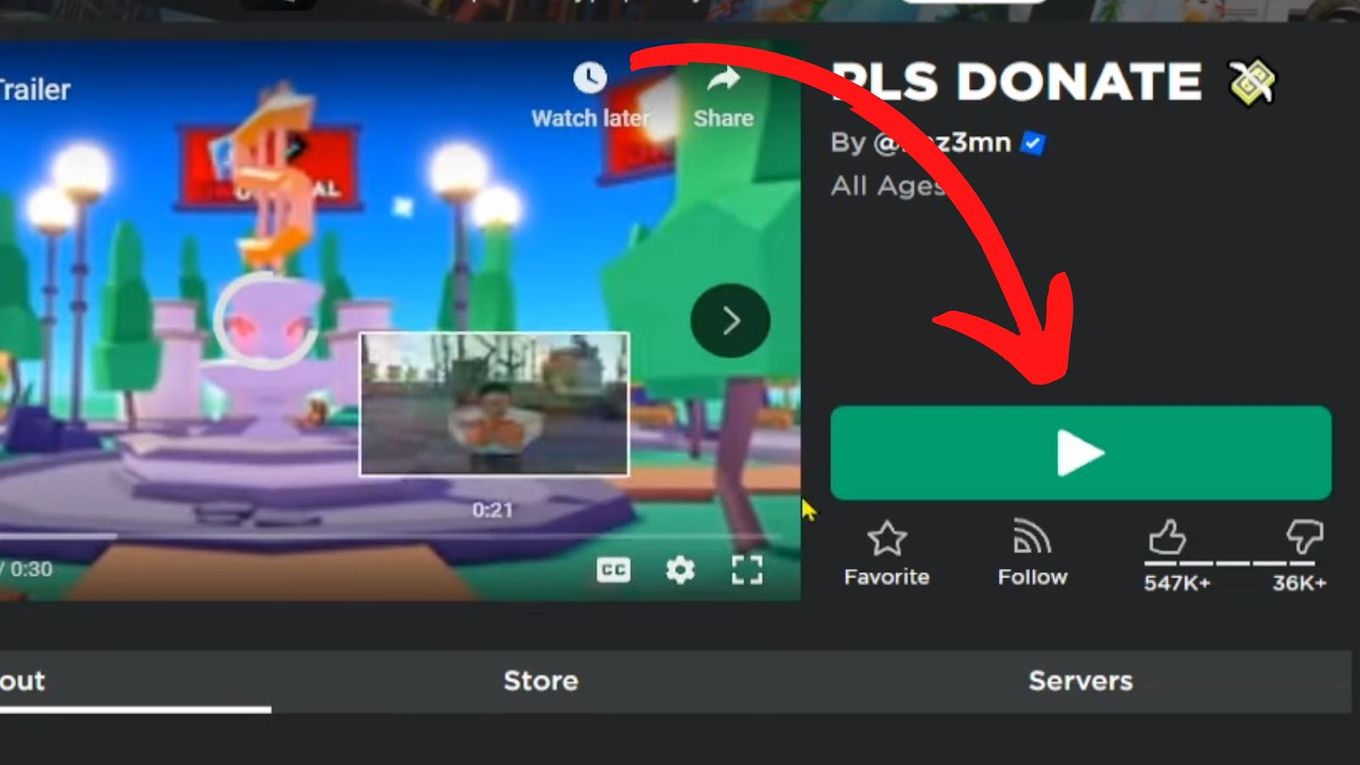
Run Multiple Roblox Accounts At Once 2026 Complete Guide Run Multiple Roblox Accounts At Once . Play Roblox Twice Your Guide To Running Multiple Instances Roblox Two Games At Once . HOW TO RUN MULTIPLE ROBLOX GAMES YouTube . Play Roblox Twice Your Guide To Running Multiple Instances . How To Join Roblox Players Seamlessly A 2026 Guide Join Other Roblox Game


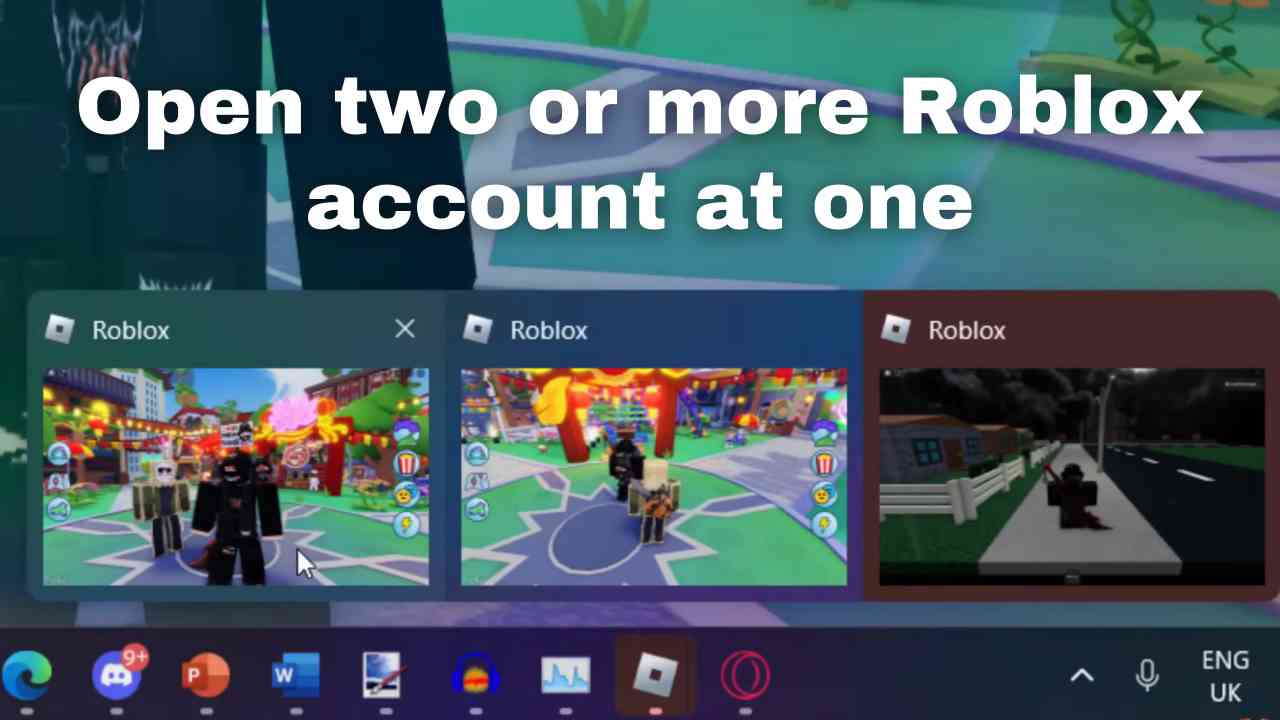

VERY EASY How To Run MULTIPLE Roblox Instances AT ONCE On One . How To Run 2 Roblox Accounts At Once YouTube . Play Roblox Twice Your Guide To Running Multiple Instances . Double The Fun Run Two Roblox Accounts How To Run Multiple Roblox Accounts At One On PC . How To Run Multiple Roblox Games At Once H Ng D N Chi Ti T V Hi U Qu Hq720
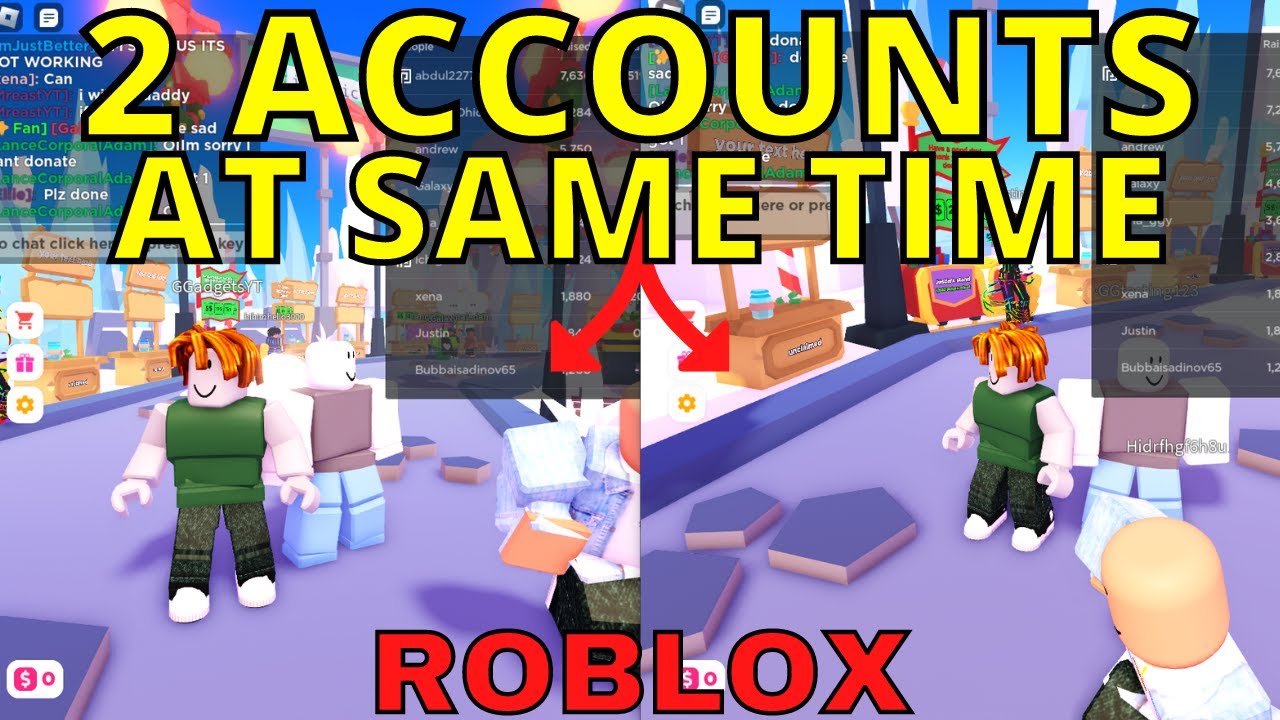


Play Roblox Twice Your Guide To Running Multiple Instances . Play Roblox Twice Your Guide To Running Multiple Instances . How To Run Multiple Roblox Games At Once Simple YouTube Hqdefault . Roblox Play More Games At Once . Play Roblox Twice Your Guide To Running Multiple Instances


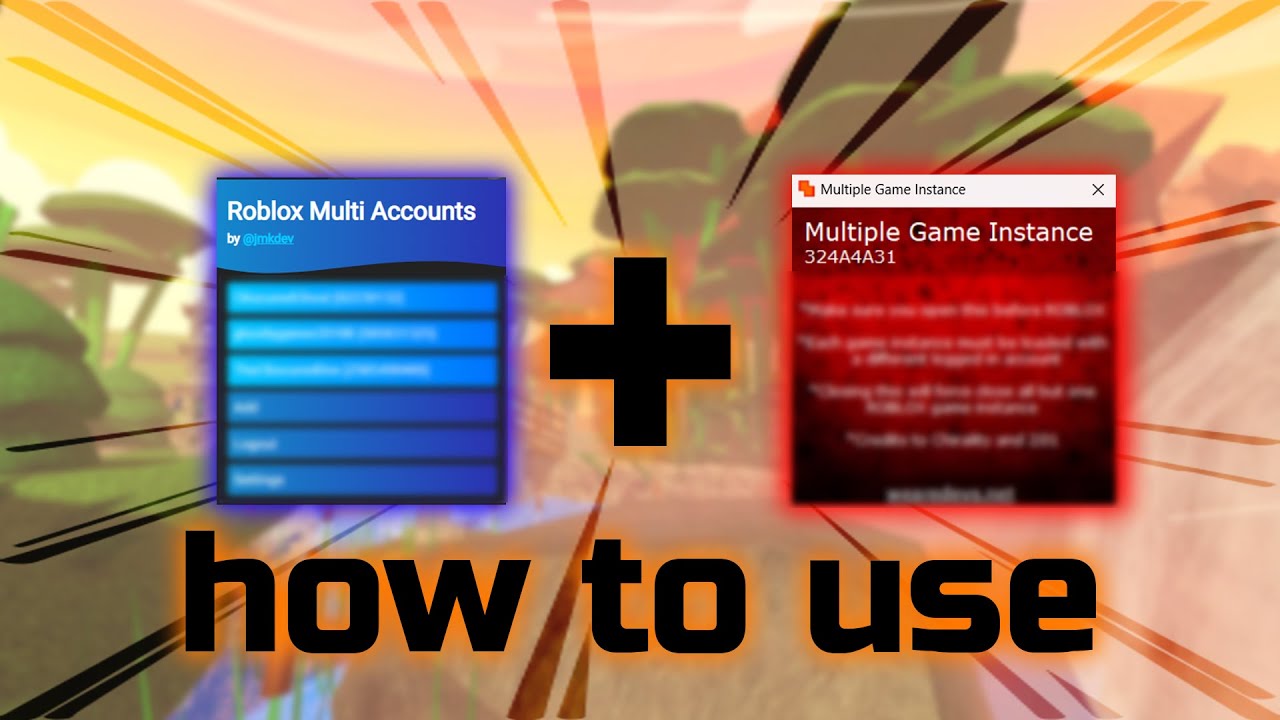
HOW TO OPEN 2 ROBLOX GAMES AT ONCE YouTube . How To Run Multiple Roblox Games At Once YouTube Hqdefault . Play Roblox Twice Your Guide To Running Multiple Instances . How To Play 2 Games At Once In Roblox AmyCHu Playz YouTube . Play Roblox Twice Your Guide To Running Multiple Instances


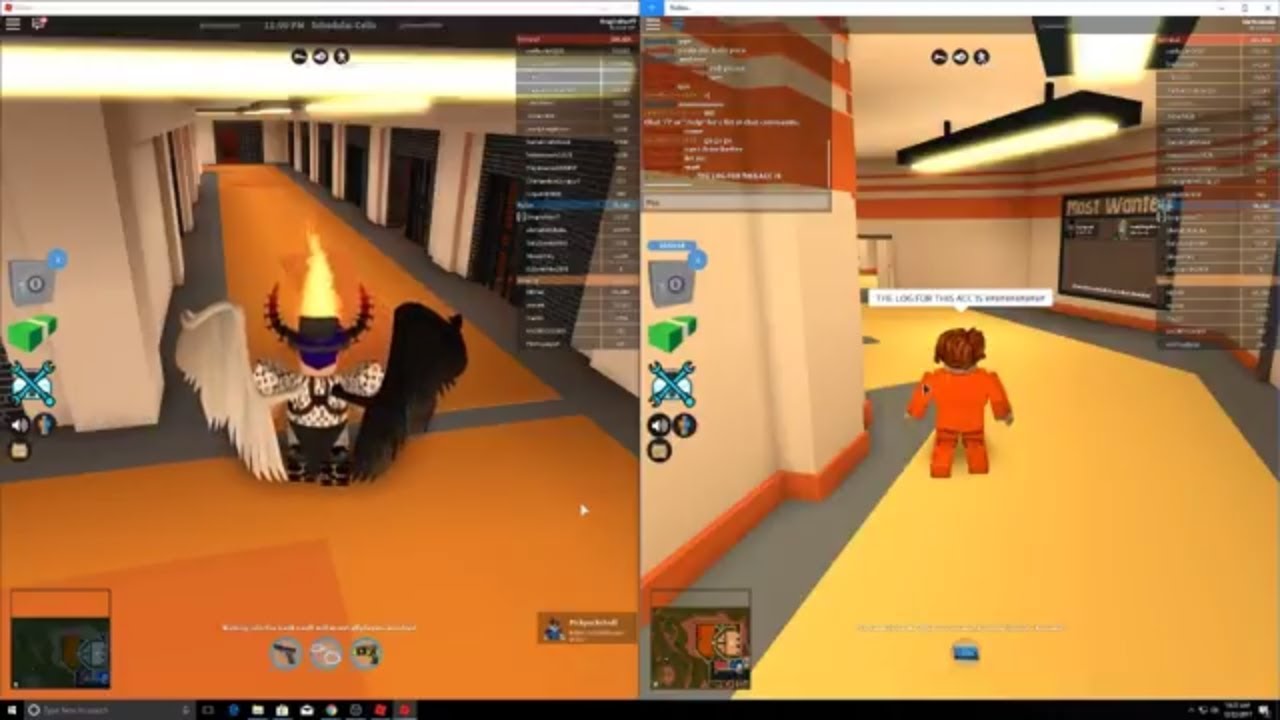
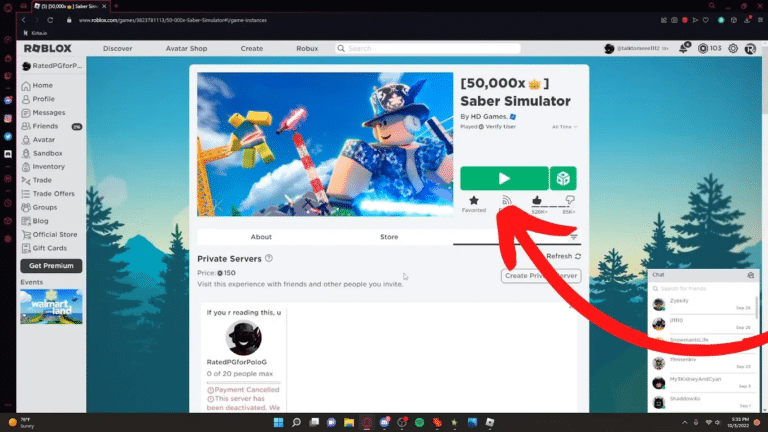
How To Play Roblox On 2 Accounts At The Same Time 2026 Use 2 . How To Open Multiple Roblox Games At Once Run Multiple ROBLOX GAMES AT . HOW TO RUN 2 ROBLOX ACCOUNTS ON 1 PC YouTube . How To Run 2 Games Of Roblox On One PC Tutorial YouTube . How To Run MULTIPLE Roblox Accounts At The Same Time WORKING 2023 Select Games To Play 768x432
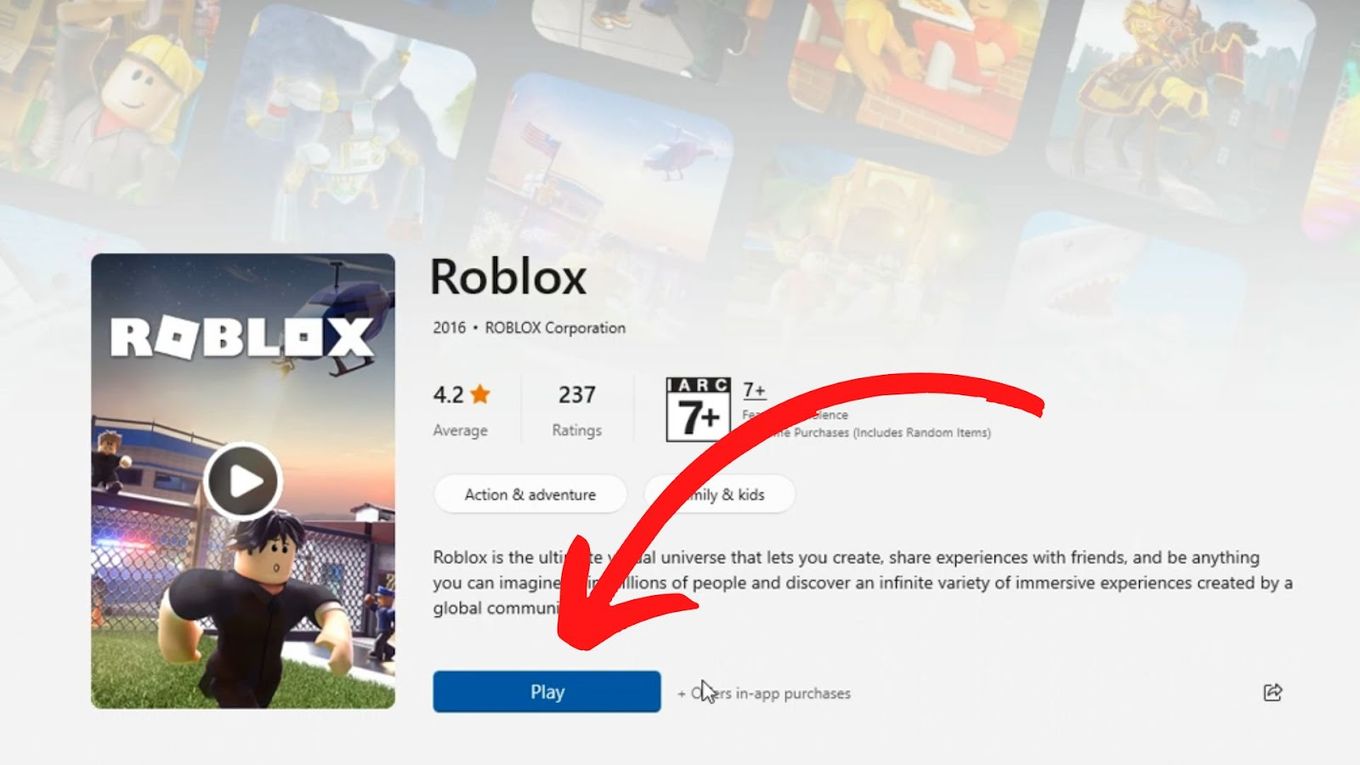
How To Run Multiple Roblox Instances Explained Alvaro Trigo S Blog Click Play Roblox App . How To Join 2 Roblox Games At Once H Ng D N Chi Ti T V Hi U Qu . 12 Best Roblox Games To Play In 2026 Insider Ranked List 12 Roblox Top Games Of 2026.webp. 10 Best Roblox Games To Enjoy In 2026 Best Roblox Game For 2026 968x544 . How To Run Two ROBLOX Games At Once YouTube


Roblox Play More Games At Once . How To Make A Game Pass In Roblox 2026 Step By Step Guide Game Pass Roblox.webp. How To Run MULTIPLE Roblox Accounts At The Same Time WORKING 2023 Roblox App . How To Run Multiple Roblox Accounts At The Same Time 2025 Updated . How To Run 2 Roblox Accounts At Once On PC H Ng D N Chi Ti T V M O Microsoft Store Roblox Multiple Instances